
Overview
Oreag turns your documents into a queryable RAG API - and an interlinked agent-memory "brain" - in minutes. Upload your files, tune how they are chunked and embedded, bring your own model-provider keys (or run a local model), and Oreag gives you a grounded /v1 REST API and an MCP connector your apps and coding agents can call.
Oreag is delivered as:
- A web dashboard (Next.js) where you create projects, upload documents, watch indexing progress, test queries in a Playground, and manage keys.
- A REST API with two surfaces - an owner/dashboard surface (
/api/..., authenticated with your Supabase session) and a public, per-project surface (/v1/..., authenticated with a project API key shaped likeoreag_sk_…). - An MCP server (
oreag-mcp) that gives coding agents (Claude Code, Codex, claude.ai / Claude Desktop) per-project memory plus RAG over a project's documents.
What makes Oreag different: the "brain"
In Oreag, a project's document chunks and its agent memories live in the same per-project embedding space - the same provider, model, and vector dimension. Because they share one space, a single cosine-similarity operator compares them directly. This single design choice underpins three capabilities:
| Capability | Endpoint | What it does |
|---|---|---|
| Grounded chat | POST /v1/projects/<project-id>/query | Retrieval-augmented answers that blend in relevant memories alongside document chunks as context. |
| Agentic exploration | POST /v1/projects/<project-id>/explore | Seeds on the nearest chunks and memories, then walks related links outward (0–3 hops) to return a connected subgraph. |
| Static memory graph | GET /v1/projects/<project-id>/memory-graph | The full graph of project → files → sections → chunks plus memories, with automatic cross-file and memory-relatedness edges. |
What you can do with Oreag
- Build a RAG API over your own files. Upload any file that text can be extracted from: rich formats (PDF, DOCX, PPTX, XLSX/XLS, HTML, RTF, EPUB, ODT/ODS/ODP, EML, ZIP) are converted with MarkItDown, images are AI-captioned with your answer model, audio is transcribed with your own provider keys, and everything else - code, configs, logs, plain text - ingests as-is. Each file is converted to Markdown, split into chunks, and embedded.
- Tune retrieval to your data. Control
chunk_size,chunk_overlap, the embedding model, the answer (LLM) model, andtop_k. - Bring your own keys (BYOK). Use your own OpenAI, Google Gemini, Anthropic, xAI (Grok), Groq, Mistral, DeepSeek, Cohere, or Sarvam keys at the account level, and optionally override them per project. Or skip keys entirely with local providers (Ollama, LM Studio, sentence-transformers).
- Give agents memory. Through the MCP server, connected agents can save decisions and facts, recall them later, and explore how knowledge and memory connect.
Health and availability
The backend exposes an unauthenticated health probe:
curl https://oreag.onrender.com/healthz
# {"status":"ok"}
The MCP server exposes its own unauthenticated probe at GET /health → 200 ok.
The rest of this guide covers the core concepts behind a project, then a step-by-step getting-started walkthrough from sign-up to your first live API call.
Core Concepts
This section defines the building blocks you will work with in Oreag: projects, documents and chunks, embeddings, agent memory, the combined brain, and the two kinds of provider keys versus project API keys.
Projects
A project is the top-level container that owns everything else - its files, chunks, API keys, memories, and query logs. Each project belongs to one account (its owner_id) and carries its own configuration:
| Field | Default | Notes |
|---|---|---|
name | - | Unique per account (case-insensitive); up to 200 chars at the API (the wizard caps the input at 20). |
description | - | Optional. |
chunk_size | 1000 | Characters per chunk. Valid range 100–8000. |
chunk_overlap | 200 | Must be >= 0 and strictly less than chunk_size. |
embedding_provider / embedding_model | openai / text-embedding-3-small | Defines the embedding space; changing it re-indexes the project. |
embedding_dimensions | 1536 | The model's default; Matryoshka models (text-embedding-3-*, gemini-embedding-001) also accept smaller prefix sizes. |
llm_provider / llm_model | openai / gpt-4o-mini | The answer model. |
top_k | 5 | Default number of chunks retrieved. Valid range 1–20. |
status | empty | One of empty, indexing, ready, error. |
A project's status is recomputed automatically: empty (no files), indexing (files pending/processing), error (a file failed), or ready.
Safe instant edits (name, description, top_k, LLM provider/model, key overrides) apply immediately via PATCH /api/projects/<project-id>. Chunking and embedding-model changes are not instant - they re-process every file and go through the re-index flow.
Documents → chunks
When you upload a file, Oreag runs it through ingestion:
- Convert the file to Markdown (via MarkItDown).
- Split the Markdown into overlapping chunks using your
chunk_size/chunk_overlap(per-file overrides fall back to the project defaults). - Embed each chunk into a vector and store it.
- Mark the file
indexedand record itschunk_count.
Each file moves through statuses pending → processing → indexed (or failed, with an error / conversion_error message). PDFs also record a page_count. Per-file limits: 50 MB maximum per file, and each file must contain extractable text.
Each chunk stores its content, its chunk_index, an optional page_number, and its embedding vector. Chunks are the document half of the brain.
Embeddings and the embedding space
An embedding is a vector that represents the meaning of a piece of text. Oreag embeds both document chunks and agent memories with the same project-wide embedding model, so every vector in a project has the same dimension and is directly comparable with cosine similarity (the pgvector <=> operator).
Retrieval is hybrid: alongside the semantic (vector) search, a Postgres full-text pass catches exact terms - error codes, part numbers, names - that embeddings can miss, and the two rankings are fused with Reciprocal Rank Fusion. Retrieval only runs when a question misses both answer caches (exact-match and semantic); cached questions never touch the chunks table.
Because the embedding model defines this shared space, changing the embedding model (or chunking) re-processes every file - Oreag wipes all chunks and re-queues every file, and memory embeddings are re-embedded with the new model. Changing only a key is instant. One more exception: shrinking the same Matryoshka model to a smaller dimension size is applied instantly by truncating the stored vectors in place - no re-embedding at all.
Agent memory
Memories are short notes - decisions, facts, context - that your connected agents save (typically via the MCP server). Each memory has:
content(1–8000 chars), optionaltags, apinnedflag, and asource(defaults to"mcp").- An embedding that is nullable: if no embedding key is available when the memory is saved, it is stored without an embedding and is not searchable until re-embedded.
Memories are the memory half of the brain. They are managed through the public MCP-facing endpoints (/v1/.../memory*) and viewed/deleted in the project's Memory tab.
The brain = chunks + memories in one space
Because chunks and memories share one embedding space, Oreag can treat them as a single connected graph - the brain. Three features build on this:
/queryblends the most relevant memories into the RAG context alongside document chunks (see blending below)./exploreseeds on nearest chunks and memories, then expands alongrelatedlinks for a number ofhops(0–3), returning a subgraph of nodes and edges./memory-graphreturns the full static graph: the project, its files, Markdown sections, chunks, and memories, with structural edges (contains,derived_from,next) and semanticrelatededges (cross-file chunk similarity and memory relatedness).
Memory blending in /query: when answering, Oreag searches a small number of memories and appends those above a similarity threshold as pseudo-sources (shown with filename="memory"). If no embedding key is available, blending is silently skipped and the answer uses document chunks only.
Two kinds of keys - don't mix them up
Oreag has three distinct key concepts. The first two are keys Oreag uses to call AI providers on your behalf; the third is a key other programs use to call Oreag. They are never interchangeable.
| # | Concept | What it is | Where to manage it | Looks like |
|---|---|---|---|---|
| 1 | Account-level provider keys | Your OpenAI / Gemini / Anthropic / Sarvam key. One per provider, shared by every project. | Sidebar → API keys → Provider API keys card | sk-…, shown as ••••••••<last4> |
| 2 | Project-level key overrides | One project choosing its own provider key for its embedding and/or answer model. | Project → Settings tab → key field under Answer model / Indexing & embedding | Project key ••••<last4> |
| 3 | Project API keys | Bearer tokens external apps / agents / MCP clients use to call this project's /v1 + MCP endpoints. | Project → API tab → Create key | oreag_sk_…, shown once at creation |
Key resolution order (concepts 1 and 2): a project's per-project override wins; otherwise the account-level provider key is used; otherwise none. Local providers (ollama, sentence_transformers) need no key at all.
Supported account-level providers and what each is used for:
- OpenAI - embeddings + chat (
sk-…) - Google Gemini - embeddings + chat; accepts both AI Studio keys (
AIza…) and Vertex AI express-mode keys (AQ.…) - Oreag routes each to the right Google backend automatically - Anthropic (Claude) - chat only
- Azure OpenAI - embeddings + chat; enter your resource endpoint alongside the key, and name deployments after their model (e.g. a gpt-4o deployment called "gpt-4o")
- Mistral - embeddings + chat
- Cohere - embeddings + chat (embed-v4.0 supports Matryoshka sizes)
- Together AI - embeddings + chat (open models)
- Fireworks AI - embeddings + chat (open models)
- xAI (Grok) - chat only
- Groq - chat only (fast open models)
- DeepSeek - chat only
- OpenRouter - chat only (one key, many upstream models)
- Perplexity - chat only (Sonar)
- Voyage AI - embeddings only
- Jina AI - embeddings only (jina-embeddings-v3 supports Matryoshka sizes)
- Sarvam AI - chat only (Indic LLMs)
Keyless local providers: Ollama, LM Studio (both probed for availability), and sentence-transformers (in-process)
The account API keys page shows both the Provider API keys card and a read-only Project key overrides card together, so you can see at a glance which projects use their own keys.
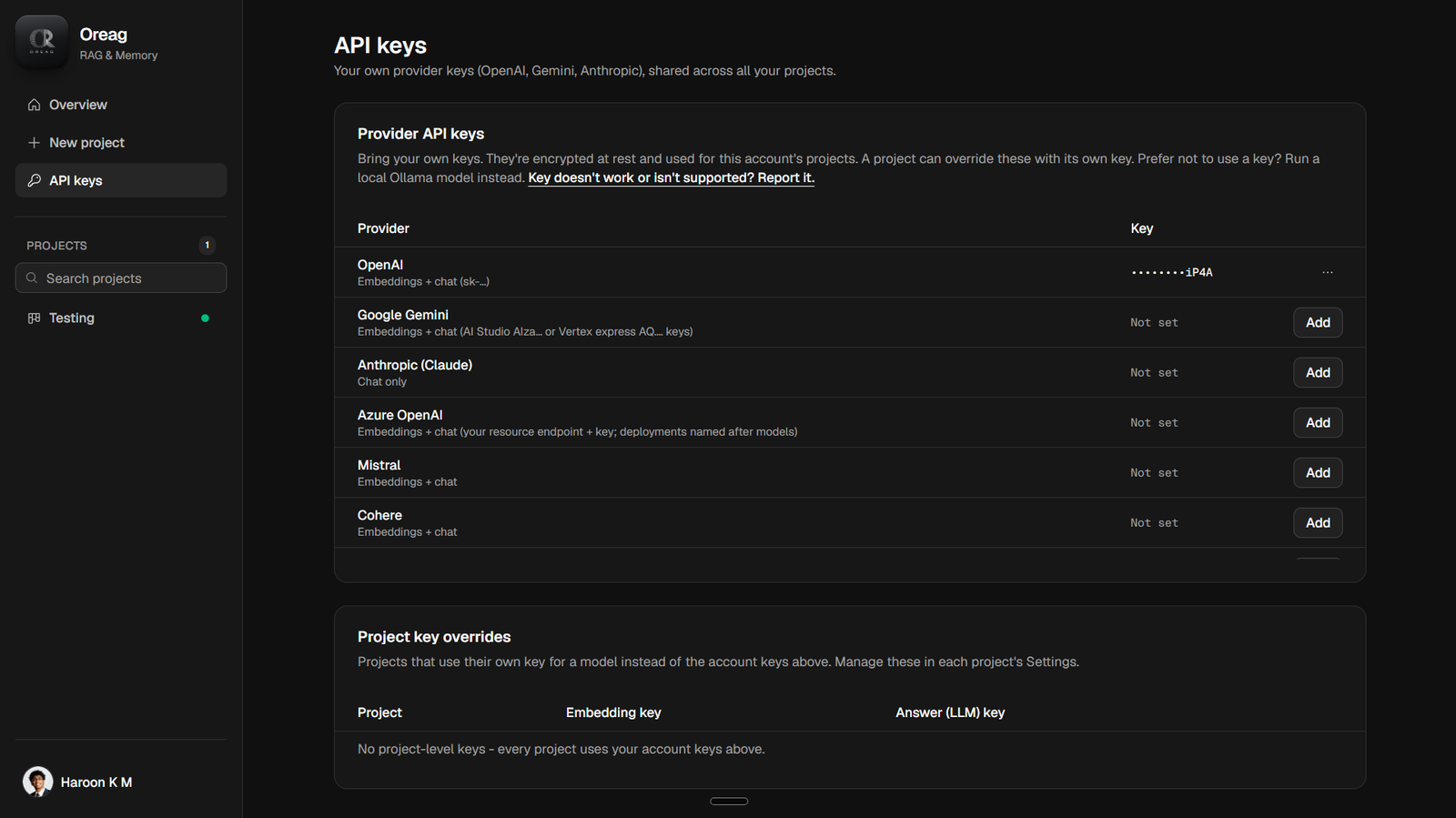
Mental model: concepts 1 and 2 let Oreag talk to the AI providers. Concept 3 lets your software talk to Oreag. If you are wiring up an app, a script, or an MCP client, you want a project API key (concept 3).
Getting Started
This walkthrough takes you from creating an account to calling your project's live RAG API. The flow is: sign up → create a project → upload documents → ask a question in the Playground → create an API key → call the endpoint.
1. Sign up
- Open the Oreag landing page and click Get started (or Sign in if you already have an account).
- On the Sign Up screen, enter your email and a password. Passwords must satisfy the live rules: at least 12 characters, one uppercase letter, and one special character. Unmet rules are listed inline as you go.
- Submit. Depending on your instance:
- If email confirmation is disabled, you go straight to the dashboard.
- If it is enabled, you'll see "Check your inbox - we sent a confirmation link"; click the link to finish.
If you try to sign up with an email that already has an account, Oreag tells you so and links you to Sign in.
2. Create a project
From the dashboard, click New project. The wizard has two steps.
Step 1 - Name and documents
- Enter a project name (the input is capped at 20 characters with a live counter; duplicate names are flagged).
- Optionally add a description.
- Drag and drop (or click to browse) the documents you want to index. Each file must be under 50 MB. Any file with extractable text is accepted - rich formats are converted with MarkItDown (list below), everything else ingests as plain text; only opaque binary is rejected:
.pdf .docx .pptx .xlsx .xls .html .htm .csv .json .xml .txt .md .rtf
.odt .ods .odp .epub .eml .jpg .jpeg .png .gif .bmp .tif .tiff
.wav .mp3 .m4a .zip
Click Configure to continue.
Step 2 - RAG configuration
- Chunk size (100–8000) and chunk overlap (≥ 0, less than chunk size).
- Embedding model - grouped by provider; only providers with a usable key (or local Ollama) are offered. This cannot be changed later without re-indexing.
- Answer model (LLM) - the chat model that writes answers.
- Top-K - how many chunks to retrieve (1–20).
If the selected provider lacks a usable key, an amber banner links you to Settings → API keys to add one (see Core Concepts → keys). Click Create (labeled "Create & index N file(s)" when files are attached). Oreag creates the project, uploads your files, and starts indexing.
Tip: You can also create a project entirely over the API. The owner endpoint is
POST /api/projects(authenticated with your dashboard session), and files are uploaded toPOST /api/projects/<project-id>/files.
3. Upload documents (and watch indexing)
If you didn't attach files in the wizard, open the project and use the Files tab → Add files. While files index, the project and file lists auto-refresh, and each file shows a status pill:
| File status | Meaning |
|---|---|
Queued (pending) | Waiting to be processed. |
Indexing (processing) | Being converted, chunked, and embedded. |
Indexed (indexed) | Ready to query. |
Needs review (failed) | Conversion or indexing failed - see the error text; use Retry. |
The project is ready to query once at least one file is Indexed (project status ready).
4. Ask a question in the Playground
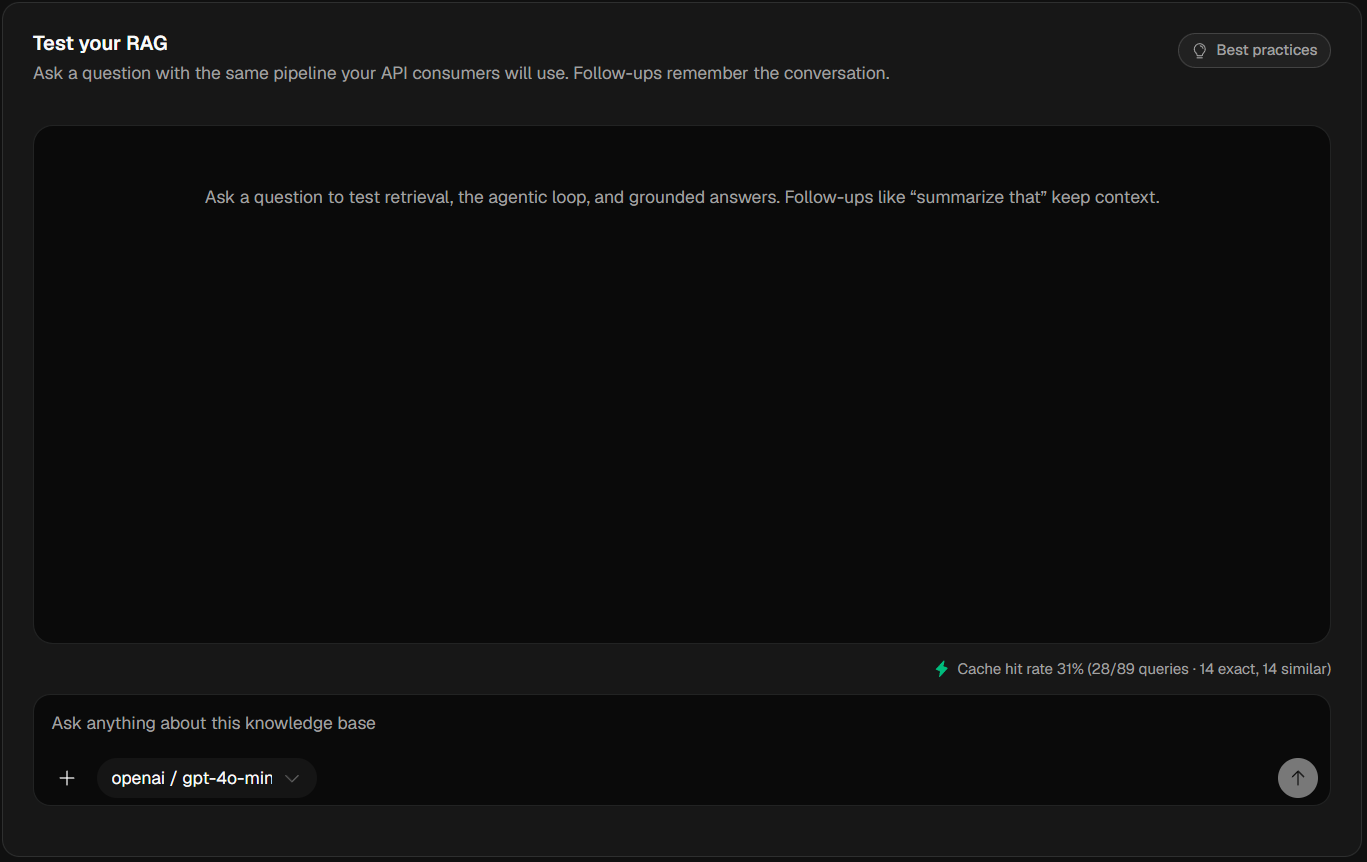
Open the project's Playground tab - it runs the exact same pipeline your API consumers will use, but with your dashboard session (no API key needed, no key logging).
- Type a question in the composer (Enter to submit; Shift+Enter for a newline).
- Oreag retrieves the top chunks, blends in any relevant memories, and generates a grounded answer.
- The result shows the answer, the model and latency (e.g.
openai/gpt-4o-mini / 812 ms), and expandable References - each[i] filename - page N (X% match)reveals the source chunk.
You can also switch the answer model from the Playground; the change is saved to the project immediately.
5. Create a project API key
To call the project from outside Oreag, you need a project API key (concept 3 from Core Concepts).
- Open the project's API tab.
- Click Create key. A dialog shows the full key (
oreag_sk_…) once - copy it now; it is never shown again. - The key appears in the table as Active.
Read vs. read+write: each key row has an Uploads checkbox in the Access column. Leave it unchecked for a read-only key (query/retrieve only); check it to allow the key to upload files via /v1/.../files. Read-only keys that attempt an upload get a 403.
You can Revoke a key (it stops working immediately but stays in the table for audit) or Delete it (permanently purged) from the row's ⋯ menu.

6. Call the endpoint
All public calls use the /v1 surface and authenticate with Authorization: Bearer YOUR_API_KEY. The key is scoped to exactly one project, so the <project-id> in the URL must match.
Ask a grounded question - POST /v1/projects/<project-id>/query
Body: question (1–4000 chars) and optional top_k (1–20).
curl -X POST "https://oreag.onrender.com/v1/projects/<project-id>/query" \
  -H "Authorization: Bearer YOUR_API_KEY" \
  -H "Content-Type: application/json" \
  -d '{"question": "What is our refund policy?"}'
Example response:
{
  "answer": "Refunds are issued within 30 days of purchase [1]. ...",
  "sources": [
    {
      "filename": "policies.pdf",
      "page_number": 4,
      "chunk_index": 12,
      "content": "Customers may request a refund within 30 days...",
      "similarity": 0.83
    }
  ],
  "model": "openai/gpt-4o-mini",
  "latency_ms": 812
}
The same call in JavaScript:
const res = await fetch(
  "https://oreag.onrender.com/v1/projects/<project-id>/query",
  {
    method: "POST",
    headers: {
      "Authorization": "Bearer YOUR_API_KEY",
      "Content-Type": "application/json",
    },
    body: JSON.stringify({ question: "What is our refund policy?" }),
  }
);
const { answer, sources } = await res.json();
console.log(answer, sources);
Retrieve passages only (no LLM) - POST /v1/projects/<project-id>/retrieve
Use this when you want raw matching chunks without a generated answer. Body: query and optional top_k (defaults to 5).
curl -X POST "https://oreag.onrender.com/v1/projects/<project-id>/retrieve" \
  -H "Authorization: Bearer YOUR_API_KEY" \
  -H "Content-Type: application/json" \
  -d '{"query": "refund window", "top_k": 3}'
Upload a document over the API - POST /v1/projects/<project-id>/files
Requires a key with Uploads enabled (otherwise 403). Files use the project's default chunking and embedding.
curl -X POST "https://oreag.onrender.com/v1/projects/<project-id>/files" \
  -H "Authorization: Bearer YOUR_API_KEY" \
  -F "uploads=@./handbook.pdf"
Other public endpoints at a glance
| Method & path | Purpose |
|---|---|
GET /v1/projects/<project-id> | Lightweight project info (id, name, status, file_count). |
POST /v1/projects/<project-id>/explore | Agentic exploration over the brain (query, hops 0–3, default 1). |
POST /v1/projects/<project-id>/memory | Save an agent memory (content, tags, pinned). |
POST /v1/projects/<project-id>/memory/search | Cosine search over embedded memories. |
GET /v1/projects/<project-id>/memory/recent | Recent + pinned memories (limit, default 10). |
GET /v1/projects/<project-id>/memory-graph | Full memory graph (nodes + related edges). |
Public ingest limits
Uploads via /v1 are guarded (owner dashboard uploads are exempt):
| Limit | Value |
|---|---|
| Max files per upload request | 20 |
| Max files per project | 1000 |
| Upload rate per project | 60 per minute (sliding 60s) |
| Max size per file | 50 MB |
7. (Optional) Connect a coding agent via MCP
To give an agent like Claude Code per-project memory + RAG, add the Oreag MCP connector with your project's URL and key:
claude mcp add --transport http oreag \
  https://<mcp-host>/projects/<project-id>/mcp \
  --header "Authorization: Bearer YOUR_API_KEY"
The agent can then save_memory, search_memory, list_recent_memory, search_docs, ask_docs, add_document, get_memory_graph, and explore_brain - all scoped to your project. A typical session bootstraps with list_recent_memory, works using search_docs / explore_brain, and records decisions with save_memory.
That's the full path from sign-up to a live, grounded API call. From here, explore the Memory tab to see what your agents remember, tune retrieval in Settings, or wire your own provider keys under Settings → API keys.
Dashboard
The dashboard is your home base in Oreag. It lists every RAG project on your account, surfaces each project's live indexing status, and gives you a persistent sidebar for moving between projects, files, and account screens. This page is served at /dashboard.
The Projects overview
The main panel (/dashboard) is headed "Projects" with a New project button in the top-right that takes you to the new-project wizard (/projects/new). The list is fetched from GET /api/projects and shows your projects newest-first.
Load, empty, and error states
| State | What you see |
|---|---|
| Loading | Three skeleton placeholder cards |
| Error | An inline message: Could not load projects: {message} |
| Empty (no projects) | A centered card with a file icon, the text "No projects yet…", and a Create your first project button |
| Populated | A responsive grid of project cards (1 column on mobile, 2 on tablet, 3 on desktop) |
Behind the scenes the dashboard also preloads
/api/provider-keysso that opening Settings → API keys later is instant.
Project cards
Each card links to that project's detail page (/projects/<project-id>) and contains:
- Title (truncated if long).
- Status button - a glowing capsule whose spinning outline color reflects the project's current status (see the status table below).
- Description (optional), clamped to two lines.
- Animated stat ticker pinned to the bottom of the card: an infinite marquee showing
file_countfiles ·chunk_countchunks ·query_countqueries · the created date (in your locale). The numbers are rendered in a monospaced, tabular-figures font. The marquee pauses on hover and respects theprefers-reduced-motionsetting. Faded edges mask the loop seam. - Navigation spinner - when you click a card and navigation is pending, a spinner appears in the card corner.
The file_count, chunk_count, and query_count values are computed server-side and returned with each ProjectOut.
Status indicator colors
A project's status is one of four values, each with a consistent color across the whole UI (cards, sidebar dots, project header):
| Status | Color | Meaning |
|---|---|---|
empty | Gray | No files indexed yet |
indexing | Amber | Files are being chunked and embedded |
ready | Emerald / green | All files indexed and queryable |
error | Red | At least one file failed to index |
While a project is indexing, the dashboard and the project detail page poll automatically so the status updates without a manual refresh.
Live cache sync
When you open a project and return, the detail page pushes its fresh data back into the dashboard's /api/projects SWR cache, so the cards never show stale counts or status after you navigate back.
Sidebar navigation
The sidebar is a fixed 16rem left column on md and larger screens. It is the primary way you move around the app.
Header and main navigation
The sidebar header shows the Oreag brand mark and a "Oreag / RAG & Memory" label that links back to /dashboard. Below it, the main navigation has three items, each with an icon and active-state highlighting:
| Item | Route | Active rule |
|---|---|---|
| Overview | /dashboard | Exact match |
| New project | /projects/new | startsWith |
| API keys | /settings/api-keys | startsWith |
Context-switching list (Projects vs. Files)
Below the main nav is a context-aware list whose header label and contents change based on where you are. The header carries a count badge.
On the dashboard (and most routes) → Projects list.
- A "Search projects" box filters by name, description, or status.
- Each row shows a folder icon, the truncated project name, and a right-side status dot colored by the project's status (gray / amber / emerald / red). The dot swaps to a spinner while navigation to that project is pending.
- Empty states: "No projects yet" or "No matching projects". Loading shows two skeleton rows.
Inside a project (/projects/<id>) → Files list.
- A "Search files" box filters the file list.
- Files are sorted newest-first and grouped by file type (PDF, DOCX, …) into collapsible sections, each with a count badge. Sections auto-open while you're searching.
- Each file row shows a file-type icon and a name capped at 12 characters with an ellipsis (full name on hover via the
titleattribute). Clicking a file navigates to/projects/<id>?file=<file-id>; a brief loader animation plays first. Modified or middle clicks open normally. - Empty states: "No files yet" or "No matching files".
The list scrolls with a hidden scrollbar and a capped height.
Footer
A separator divides the list from the user menu at the bottom.
User menu
The user menu shows your avatar plus your display name (avatar-only in compact/mobile mode). It stays live across profile updates by re-reading the session on auth-state changes.
- Display name resolves to your
user_metadata.username, falling back to the local part of your email, then to "Account". - Avatar uses your uploaded
avatar_url, falling back to a Gravatar for your email, then to an initial letter. - The dropdown contains a label block (name + email), a Profile link →
/settings/profile, and a destructive Sign out action that signs you out and returns you to/login.
Mobile & responsive behavior
Below the md breakpoint the fixed sidebar is hidden and replaced by a sticky, blurred top bar:
- A hamburger (list) icon opens a left drawer (a
Sheet, 18rem wide) containing the full sidebar body. - The brand mark links to
/dashboard. - A compact user menu (avatar only) sits on the right.
- The drawer closes automatically on route change.
The project cards grid collapses from 3 → 2 → 1 columns as the viewport narrows. All status colors, spinners, and the stat marquee behave identically on mobile.
Shared navigation-pending state
Projects use a shared nav-pending store, so clicking a project from any surface (a dashboard card or a sidebar row) lights up the loading spinner on all surfaces for that project at once. This keeps the card spinner and the sidebar status-dot spinner in sync.
Projects
A project is a self-contained RAG knowledge base: its own documents, chunking and embedding configuration, answer (LLM) model, agent memories, and API keys. This section covers creating a project with the two-step wizard and gives an overview of the six tabs you use to manage it afterward.
Creating a project (the wizard)
The new-project wizard lives at /projects/new (reached from the New project button on the dashboard or the New project sidebar item). It is a two-step card flow titled "New RAG project". On load it fetches /api/models (to know which providers you can use) and /api/projects (to detect duplicate names).
Step 1 - Name and documents
Project name
-
A single-line input with a hard limit of 20 characters (
maxLength={20}), accompanied by a live X/20 character counter that turns amber when you hit the cap. -
Duplicate-name detection is case-insensitive against your existing projects. If a match is found, the field is marked invalid and shows destructive helper text:
A project named '…' already exists - choose another name.
Description (optional)
- A two-row textarea. Optional and free-form.
Documents
- A drag-and-drop dropzone (also clickable to browse): "Drag and drop files here, or click to browse (max 50 MB each)."
- Any file with extractable text is accepted - rich formats are converted with MarkItDown, everything else ingests as plain text; opaque binary is rejected by the API. For reference, MarkItDown handles:
.pdf  .docx .pptx .xlsx .xls  .html .htm  .csv  .json .xml
.txt  .md   .rtf  .odt  .ods  .odp  .epub .eml
.jpg  .jpeg .png  .gif  .bmp  .tif  .tiff
.wav  .mp3  .m4a  .zip
- Per-file validation: a file over 50 MB toasts
{name}: exceeds the 50 MB limit. Selections are de-duplicated by name + size. - Selected files appear in a list, each with a per-file X remove button.
Buttons: Cancel returns to /dashboard; Configure advances to step 2 and is disabled until the name is non-empty and not a duplicate.
Step 2 - RAG configuration
This step is titled "RAG configuration".
Unavailable-key banner. If the embedding or answer provider you've selected has no usable key, an amber banner appears linking to Settings → API keys and mentioning that you can run a local Ollama model instead (no key required).
Chunking
| Field | Range | Notes |
|---|---|---|
| Chunk size | 100–8000 | Characters per chunk |
| Chunk overlap | ≥ 0 | Must be less than the chunk size |
Embedding model
- A select grouped by provider, displaying each option as
provider / model (Nd)whereNdis the embedding dimension. The list is filtered to providers you have a usable key for (your current selection is always kept even if it becomes unavailable). - Helper text: "Cannot be changed later without re-indexing." If your default provider lacks a key, the wizard auto-falls-back to the first available provider/model.
Answer model (LLM)
- A select grouped as
provider / model, availability-filtered, with the same auto-fallback behavior as the embedding picker.
Top-K
- A range slider from 1 to 20 with a live label "Top-K results: {n}". This is how many chunks are retrieved per query by default.
Upload progress. When files are attached and you submit, a progress row appears: "Uploading N files…" counting up, switching to "Processing on the server…" at 100%, with a percentage and a progress bar.
Buttons: Back returns to step 1. Create reads "Create & index N file(s)" when files are attached, otherwise "Create project"; it shows an inline loader while submitting and is disabled while submitting, when the name is taken, or when the embedding/LLM provider is unavailable.
What happens on create
The wizard issues a POST /api/projects, then (if you attached files) uploads them, then toasts and navigates you into the new project:
# 1. Create the project (owner JWT auth)
curl -X POST https://YOUR_HOST/api/projects \
  -H "Authorization: Bearer YOUR_SUPABASE_JWT" \
  -H "Content-Type: application/json" \
  -d '{
    "name": "Support Docs",
    "description": "Customer-facing help center",
    "chunk_size": 1000,
    "chunk_overlap": 200,
    "embedding_provider": "openai",
    "embedding_model": "text-embedding-3-small",
    "llm_provider": "openai",
    "llm_model": "gpt-4o-mini",
    "top_k": 5
  }'
The response is a ProjectOut (status 201). If files were attached, the wizard then uploads them to POST /api/projects/<project-id>/files (multipart) and shows a "Project created - indexing started" toast before pushing you to the project page.
{
  "id": "<project-id>",
  "name": "Support Docs",
  "status": "empty",
  "chunk_size": 1000,
  "chunk_overlap": 200,
  "embedding_provider": "openai",
  "embedding_model": "text-embedding-3-small",
  "embedding_dimensions": 1536,
  "llm_provider": "openai",
  "llm_model": "gpt-4o-mini",
  "top_k": 5,
  "file_count": 0,
  "chunk_count": 0,
  "query_count": 0
}
Server-side validation mirrors the wizard guards and returns 422 for bad input: chunk_overlap must be < chunk_size; the embedding provider/model combination must be valid (it determines embedding_dimensions); and the LLM combination is validated. A duplicate name returns 409.
Default configuration values
If you don't change them, a project is created with these defaults:
| Setting | Default |
|---|---|
| Chunk size | 1000 |
| Chunk overlap | 200 |
| Embedding provider / model | openai / text-embedding-3-small (1536 dims) |
| Answer provider / model | openai / gpt-4o-mini |
| Top-K | 5 |
The project detail page
Opening a project navigates to /projects/<project-id>. The page reads two optional query parameters - ?file=<id> (forces the Files tab and highlights that file) and ?tab=<name> (opens a specific tab; valid tabs are files, memory, playground, api, visualize, settings).
Header. Shows the project name (with an indexing loader while status === "indexing") and a meta line:
{file_count} files · {chunk_count} chunks · {embedding_provider}/{embedding_model} · {llm_provider}/{llm_model}
The page auto-refreshes every 3 seconds while the project is indexing, and pushes fresh data back into the dashboard cache so cards stay current.
The six tabs at a glance
| Tab | What it does |
|---|---|
| Files | Upload, retry, re-index, and delete documents. Shows per-file status pills (Queued / Indexing / Indexed / Needs review), size, page count, and chunk count. Includes an Add files dialog and bulk Retry failed files / Re-index all files actions. |
| Memory | Read-only view of agent memories saved via the MCP server. Filter by content; each memory shows its tags, pin state, source, and date, with a per-row delete. |
| Playground | Test the exact RAG pipeline your API consumers use. Ask a question, see the grounded answer with model name and latency, and expand each cited source chunk. You can also switch the answer model inline (it instantly patches the project). |
| API | Create, revoke, and delete project API keys (oreag_sk_…), toggle per-key upload permission, and copy ready-made endpoint snippets (curl, JavaScript, the memory-graph URL, and the MCP connector command). |
| Visualize | Interactive 3D knowledge graph of the project's brain - files, chunks and memories as nodes with similarity edges. Rotate, zoom, hover for tooltips, click a node for details and a View file shortcut. |
| Settings | Edit project name and Top-K (instant), change the answer model and per-project key overrides, change chunking/embedding (triggers a re-index), and a danger zone to delete the project. |
For switching speed, the page mounts all tabs in the background 150 ms after load, so moving between them is instant.
Quick example: querying a project after creation
Once a project has indexed files and you've created an API key in the API tab, external callers query it through the public /v1 endpoint:
curl -X POST https://YOUR_HOST/v1/projects/<project-id>/query \
  -H "Authorization: Bearer YOUR_API_KEY" \
  -H "Content-Type: application/json" \
  -d '{"question": "How do I reset my password?"}'
{
"answer": "To reset your password, open Settings and click ...",
"sources": [
{ "filename": "help-center.pdf", "page_number": 4, "chunk_index": 12, "content": "..." }
],
"model": "openai/gpt-4o-mini",
"latency_ms": 842
}The same pipeline (including the blending of agent memories into retrieval) runs in the Playground tab, just authenticated with your dashboard session instead of an API key.
Uploading Documents
Everything you query in Oreag starts with a document. When you upload a file, Oreag converts it to Markdown, splits it into chunks, embeds those chunks into your project's vector space, and makes them searchable through the RAG API, the playground, and the MCP tools. This page covers what you can upload, the size and quota limits, and the three ways to upload: the in-app Add files dialog, the public POST /v1/.../files REST endpoint, and the add_document MCP tool.
Supported file types
Oreag accepts any file that text can be extracted from. The rich formats below are converted with MarkItDown; every other extension (code, configs, logs, even files with no extension) is ingested as plain text. Only opaque binary is rejected - the same rule applies everywhere: the in-app dropzones, the public API, and the MCP tool.
| Category | Extensions |
|---|---|
| Documents | .pdf .docx .rtf .odt .epub .txt .md |
| Presentations | .pptx .odp |
| Spreadsheets | .xlsx .xls .ods .csv |
| Web / data | .html .htm .json .xml |
.eml | |
| Images | .jpg .jpeg .png .gif .bmp .tif .tiff |
| Audio | .mp3 .wav .m4a |
| Archives | .zip |
Conversion is performed by MarkItDown for the formats above and by plain-text decoding for everything else. Files that produce no extractable text fail during indexing with a conversion error; opaque binary files are rejected at upload with 400.
Images - AI captioning
Images (.jpg .jpeg .png) contain no machine-readable text - the words you see are pixels. During indexing Oreag asks your project's answer model to describe the image and transcribe any text in it verbatim; that caption becomes the file's searchable text. This requires the answer model to be OpenAI or Gemini (Gemini runs through its OpenAI-compatible endpoint) - projects on other providers fail image ingestion with a clear message asking to switch the answer model. Other image types (.gif .bmp .tif .tiff) yield only embedded metadata.
Audio - transcription with your own keys
Audio (.mp3 .wav .m4a) is transcribed with your own provider keys (project override or account key). Every speech-capable provider you hold a key for is tried in order, your project's own provider first:
| Provider | Transcription model |
|---|---|
| OpenAI | Whisper (whisper-1) |
| Gemini | native audio understanding |
| Groq | whisper-large-v3 |
| Mistral | Voxtral |
| Sarvam | Saarika (Indic languages) |
Providers without speech-to-text (Anthropic, xAI, DeepSeek...) are skipped. A free speech endpoint - suited to short, clear clips only - runs when none of your keys can transcribe. When that fallback is used the file carries a note, shown on its row in the Files tab and raised as a toast when indexing finishes, so you know your keys were not used and can add a speech-capable one.
Size and quota limits
| Limit | Value | Applies to | Enforced where |
|---|---|---|---|
| Max file size | 50 MB per file | Owner uploads and /v1 uploads | 413 on the API; toast in the UI |
| Max files per upload request | 20 | /v1 public uploads only | 413 |
| Max files per project | 1000 total | /v1 public uploads only | 413 |
| Upload rate | 60 files / minute per project (sliding 60s window) | /v1 public uploads only | 429 |
| Request rate (standard) | 120/min per key + 300/min per project | All /v1 endpoints except uploads | 429 + Retry-After |
| Request rate (heavy) | 10/min per key + 20/min per project | /v1 /explore and /memory-graph | 429 + Retry-After |
| Memories per project | ≤ 2000 | /v1 memory create | 413 |
Important: the per-request count, per-project total, and rate limits apply only to the public /v1 upload endpoint. Owner uploads made through the dashboard (the wizard and the Add files dialog) are not subject to those three quotas - only the 50 MB per-file ceiling applies to them.
Method 1 - The Add files dialog (dashboard)
The quickest way to add documents to an existing project is the Add files dialog on the project's Files tab.
Where to find it
- Open the project from the sidebar (
/projects/<project-id>). - Stay on the Files tab (the default).
- Click the Add files button in the header.

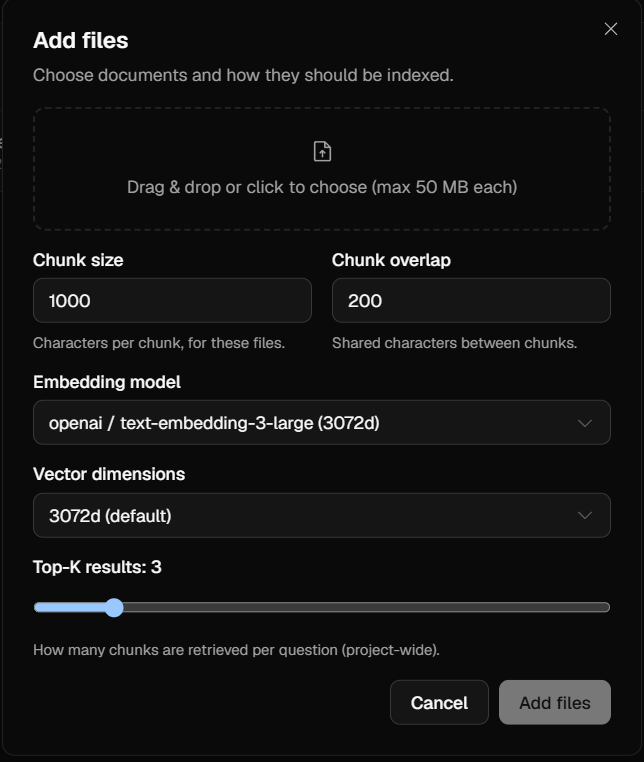
Selecting files
- Drag and drop files onto the dropzone, or click it to open the file browser. The dropzone reads "Drag & drop or click to choose (max 50 MB each)."
- Selection is validated immediately, per file:
- Over 50 MB → toast
"<name>: exceeds the 50 MB limit". - Duplicates (same name + size) are de-duped automatically.
- Over 50 MB → toast
- Selected files appear in a scrollable list; remove any one with the X next to it.
Chunking, embedding, and Top-K controls
The dialog defaults to the project's current settings, which you can adjust for this upload:
| Control | Range / behavior |
|---|---|
| Chunk size | 100–8000 characters (defaults to the project value) |
| Chunk overlap | ≥ 0 and must be less than chunk size (validated on submit) |
| Embedding model | Provider/model picker, filtered to providers you have a usable key for |
| Top-K | Slider 1–20 (project-wide setting) |
Embedding is project-wide. If you change the embedding model in this dialog, Oreag must re-embed everything so the whole project stays in a single vector space. An amber warning appears: "The embedding model is project-wide. Changing it re-indexes all N existing file(s) too." In that case the submit button reads "Add & re-index."
Submitting
While uploading, a progress row shows "Uploading N files…" and then "Processing on the server…" at 100%, with a percentage and progress bar. Closing the dialog (overlay click, Esc, or X) or clicking Cancel mid-upload aborts the in-flight request and toasts "Upload canceled."
On success you'll see one of two toasts:
- "…indexing started" (embedding unchanged), or
- "…re-indexing the whole project" (embedding model changed).
Method 2 - The public upload API (POST /v1/.../files)
External apps, scripts, and CI pipelines upload through the public REST endpoint using a project API key (oreag_sk_…).
Endpoint
| Method | POST |
| URL | https://<your-host>/v1/projects/<project-id>/files |
| Auth | Authorization: Bearer YOUR_API_KEY (must start with oreag_sk_) |
| Body | multipart/form-data, field name uploads (repeatable) |
The can_upload requirement (read-only vs. read+write keys)
Project API keys are read-only by default. A key can upload files only if its can_upload ("Uploads") flag is enabled. If you call this endpoint with a read-only key, the request is rejected with 403 - "read-only."
To enable uploads, open the project's API tab, find the key's row, and check the "Uploads" checkbox in the Access column (the change saves optimistically). You can also create or manage keys there.

Validation and limits (in order)
The endpoint applies these guards on every request:
- Key must have
can_upload = true→ else403. - At least one file must be attached → else
422. - No more than 20 files in this request → else
413. - Project total after this upload must stay ≤ 1000 files → else
413. - Rate limit: files created in the last 60 seconds plus this batch must be ≤ 60 → else
429. - Text must be extractable from each file → else
400. - Each file must be ≤ 50 MB → else
413.
Public uploads always use the project's default chunking and embedding settings - there are no per-request chunking or embedding overrides on /v1. (Use the dashboard Add files dialog or the /reindex endpoint to change those.)
On success the endpoint returns 201 with the list of newly created files, the project status moves to indexing, and background ingestion is queued.
curl example
curl -X POST "https://<your-host>/v1/projects/<project-id>/files" \
  -H "Authorization: Bearer YOUR_API_KEY" \
  -F "uploads=@./handbook.pdf" \
  -F "uploads=@./faq.md" \
  -F "uploads=@./pricing.xlsx"
The key here must have "Allow uploads" enabled - read-only keys cannot ingest and will get a
403.
Example 201 response
[
  {
    "id": "c1a2b3c4-0000-4444-8888-aaaaaaaaaaaa",
    "filename": "handbook.pdf",
    "status": "pending",
    "content_type": "application/pdf",
    "source_extension": ".pdf",
    "size_bytes": 482113,
    "page_count": 12,
    "chunk_count": 0,
    "error": null,
    "conversion_error": null,
    "created_at": "2026-06-20T10:15:00Z",
    "indexed_at": null
  }
]
Files start as pending and progress through processing to indexed (or failed). Poll GET /v1/projects/<project-id> for the project's status, or list files via the dashboard, to track progress. See Files & indexing for the full status lifecycle.
JavaScript example
const form = new FormData();
form.append("uploads", fileA, "handbook.pdf");
form.append("uploads", fileB, "faq.md");

const res = await fetch(
  "https://<your-host>/v1/projects/<project-id>/files",
  {
    method: "POST",
    headers: { Authorization: "Bearer YOUR_API_KEY" }, // do NOT set Content-Type; the browser sets the multipart boundary
    body: form,
  }
);

if (res.status === 403) throw new Error("This API key is read-only - enable Uploads on the key.");
if (res.status === 429) throw new Error("Upload rate limit hit (60/min per project) - back off and retry.");
if (!res.ok) throw new Error(`Upload failed: ${res.status}`);

const files = await res.json();
console.log(`Queued ${files.length} file(s) for indexing.`);
Status codes summary
| Code | Meaning |
|---|---|
201 | Files accepted and queued for indexing |
400 | No text could be extracted from a file (opaque binary) |
403 | API key is read-only (can_upload is false) |
413 | A file exceeds 50 MB, >20 files in request, or >1000 files in project |
422 | No files attached |
429 | Upload rate limit exceeded (60 files/min per project) |
401 | Missing or invalid API key |
Method 3 - The MCP add_document tool (coding agents)
When a coding agent (Claude Code, Codex, claude.ai/Desktop) is connected to your project through the Oreag MCP server, it can add documents directly with the add_document tool. This is ideal for letting an agent persist generated notes, specs, or summaries into the project's searchable knowledge base.
| Param | Type | Description |
|---|---|---|
filename | str | Name of the document. Any extension (or none) works. |
content | str | The full text body of the document. |
Under the hood the tool sends a multipart upload to the same public endpoint:
POST /v1/projects/<project-id>/files
files = { "uploads": (filename, content (utf-8), "text/plain") }
The MCP key needs upload permission. Because add_document calls the public upload endpoint, the project API key the MCP server uses must have can_upload enabled. With a read-only key the tool fails with 403, just like a raw API call. The same 50 MB / 20-per-request / 1000-per-project / 60-per-minute limits apply.
Example agent call (conceptual)
{
  "tool": "add_document",
  "arguments": {
    "filename": "architecture-decision-2026-06.md",
    "content": "# ADR-014: Adopt pgvector\n\nWe chose pgvector because..."
  }
}
The document is chunked, embedded, and becomes searchable through search_docs, ask_docs, and explore_brain once indexing completes. To connect the MCP server, see the MCP connector snippet on your project's API tab.
What happens after upload
Regardless of which method you use, every uploaded file goes through the same pipeline:
- Convert the source to Markdown (MarkItDown).
- Split into chunks using the project's (or per-file) chunk size and overlap.
- Embed each chunk in batches into the project's vector space.
- Index - the file moves to
indexed, itschunk_countandindexed_atare set, and the project status is recomputed.
If any step fails, the file is marked failed with an error (or conversion_error) message. See Files & indexing for how to monitor, retry, re-index, and delete files.
Files & Indexing Management
Once documents are uploaded, the project's Files tab is where you watch them index, retry failures, re-process the whole project, and delete what you no longer need. This page explains the file status lifecycle, how indexing works, and the retry / re-index / delete actions - from both the dashboard and the API where applicable.
The file status lifecycle
Every file moves through four statuses:
| Status | Meaning | UI pill (Files tab) |
|---|---|---|
pending | Uploaded and queued, not yet picked up | Queued (clock icon, amber) |
processing | Currently converting / chunking / embedding | Indexing (animated loader, sky) |
indexed | Successfully chunked, embedded, and searchable | Indexed (check, muted) |
failed | Conversion or indexing error; see the error text | Needs review (alert, red) |
Each pill carries an aria-label/title for accessibility.
Project status (derived from its files)
The project's own status is recomputed from its files:
| Project status | Condition |
|---|---|
empty | No files |
indexing | Any file is pending or processing |
error | Any file is failed (and none pending/processing) |
ready | All files indexed successfully |
In the UI the project's status is shown as a colored dot/capsule: gray (empty), amber (indexing), emerald/green (ready), red (error).
Server restarts: if the backend restarts while files are mid-flight, any
pendingorprocessingfiles are automatically markedfailedwith the error "Interrupted by server restart." Just retry them (below).
How indexing works
When a file is queued, a background task runs the pipeline:
- Convert the source document to Markdown.
- Split it into chunks using the file's chunk size/overlap (falling back to the project's values).
- Embed the chunks in batches and bulk-insert them as vectors.
- Finalize - status becomes
indexed,chunk_countandindexed_atare set, and the project status is recomputed.
If a document produces no chunks (e.g., no extractable text), or any step raises an error, the file is rolled back to failed and the message is stored in error (indexing errors) or conversion_error (Markdown-conversion errors) - each shown distinctly on the file row.
Live progress in the dashboard
The Files tab and project page auto-refresh every 3 seconds while any file is pending/processing (or while the project status is indexing), so you can watch files flip to Indexed without reloading. The project header shows an animated loader while indexing.
File row details
Each file row shows its icon, filename (truncated), and a meta line:
EXT · size · N page(s) · M chunk(s)
For example PDF · 1.2 MB · 12 pages · 34 chunks. Page counts appear for PDFs only. Destructive error and conversion_error text appear beneath the meta line when present.

Retrying failed files
When a file lands in Needs review (failed), retry it to re-run the pipeline.
Retry a single file (dashboard)
- On the file's row, open the per-file 3-dots menu.
- Click "Retry indexing" (shown when the file is
failed). - The file resets to
pending, its errors clear, and indexing re-queues.
The menu item is disabled while a file is processing.
Retry all failed files at once
- In the Files tab header, open the 3-dots menu (header level).
- Click "Retry failed files."
- Oreag filters to
failedfiles and retries each in parallel. If there are none, you'll see "No failed files to retry"; otherwise "Retrying N failed file(s)."
Retry via API
| Method / URL | POST /api/projects/<project-id>/files/<file-id>/retry |
| Auth | Owner JWT (dashboard) |
| Behavior | 404 if the file isn't in the project; 409 if the file is currently processing; otherwise resets to pending, clears errors, re-queues. |
| Response | The updated FileOut |
curl -X POST "https://<your-host>/api/projects/<project-id>/files/<file-id>/retry" \
  -H "Authorization: Bearer YOUR_SUPABASE_JWT"
Re-indexing the whole project
Use re-index when you change something project-wide - a different embedding model, or new chunk size/overlap - that requires every file to be re-processed so the entire project stays in one consistent vector space.
Re-indexing wipes all existing chunks, resets every file to
pending, sets the project toindexing(oremptyif there are no files), and re-queues all files. Queries are unavailable until indexing completes.
Matryoshka fast path (no re-embedding): shrinking the same MRL-capable model to a smaller
embedding_dimensions(e.g.text-embedding-3-large3072 to 1024) skips all of the above - the stored vectors (chunks and memories) are truncated to the prefix and re-normalized in place, instantly and at zero API cost. Growing back, or switching models, still needs the full re-index. On a model switch, memory embeddings are cleared immediately (old-model vectors are incompatible) and re-embedded with the new model in the background.
Re-index from the Files tab
- Open the Files tab header 3-dots menu.
- Click "Re-index all files."
- Oreag posts to the re-index endpoint with an empty body (keeping current settings) and toasts "Re-indexing started."
Re-index from Settings (to change model / chunking)
The Settings tab is where you change the embedding model or chunk size/overlap. In the Indexing & embedding card:
- If you changed the embedding model or chunk settings, the action button reads "Change & re-index" and opens a "Re-index all files?" confirmation: "All N file(s) will be re-chunked and re-embedded…"
- Confirm with Re-index to apply the new settings and re-process every file. Toast: "Re-indexing started - all files will be processed again."
Changing only the provider key (not the model or chunking) is an instant save with no re-index.
Screenshot: the "Re-index all files?" confirmation dialog | Project → Settings tab → Indexing & embedding card
Re-index via API
| Method / URL | POST /api/projects/<project-id>/reindex |
| Auth | Owner JWT |
| Body | ReindexRequest - optional embedding_provider, embedding_model, embedding_dimensions, embedding_api_key, chunk_size, chunk_overlap (overlap must stay < chunk_size, else 422) |
| Behavior | Wipes all chunks, resets every file to pending, status → indexing, re-queues all |
| Response | list[FileOut] |
# Re-index keeping current settings (empty body)
curl -X POST "https://<your-host>/api/projects/<project-id>/reindex" \
  -H "Authorization: Bearer YOUR_SUPABASE_JWT" \
  -H "Content-Type: application/json" \
-d '{}'# Re-index AND change chunking + embedding model
curl -X POST "https://<your-host>/api/projects/<project-id>/reindex" \
-H "Authorization: Bearer YOUR_SUPABASE_JWT" \
-H "Content-Type: application/json" \
-d '{
"embedding_provider": "openai",
"embedding_model": "text-embedding-3-small",
"chunk_size": 1200,
"chunk_overlap": 150
}'Note on uploads that trigger re-indexing: uploading through the dashboard Add files dialog (or the owner upload endpoint) with a changed embedding provider/model also wipes all chunks and re-queues every existing file - embedding is a project-wide setting. The public
/v1upload endpoint never changes embedding settings, so it never triggers a project-wide re-index.
Deleting a file
Deleting a file removes the file row, cascades to delete its chunks, and removes both the source and the converted-Markdown objects from storage. The project status is then recomputed.
Delete from the dashboard
- On the file's row, open the per-file 3-dots menu.
- Click "Delete file" (destructive).
- Confirm in the "Delete this file?" dialog (it names the file). While deleting, a loader animation plays with "Permanently deleting…" (no close button); the dialog closes and toasts "<filename> deleted" once the deletion completes.
Delete via API
| Method / URL | DELETE /api/projects/<project-id>/files/<file-id> |
| Auth | Owner JWT |
| Behavior | 404 if the file isn't in the project; deletes the file (cascading chunks), removes source + Markdown from storage, recomputes status |
| Response | 204 No Content |
curl -X DELETE "https://<your-host>/api/projects/<project-id>/files/<file-id>" \
  -H "Authorization: Bearer YOUR_SUPABASE_JWT"
File deletion is an owner-only dashboard/JWT action. The public
/v1API can upload files but does not expose a file-delete endpoint - project API keys cannot remove files.
Quick reference
| Action | Dashboard path | API endpoint | Auth |
|---|---|---|---|
| List files | Files tab | GET /api/projects/<project-id>/files | Owner JWT |
| Retry one file | File row ⋯ → Retry indexing | POST /api/projects/<project-id>/files/<file-id>/retry | Owner JWT |
| Retry all failed | Header ⋯ → Retry failed files | (per-file retry, in parallel) | Owner JWT |
| Re-index project | Header ⋯ → Re-index all files / Settings → Change & re-index | POST /api/projects/<project-id>/reindex | Owner JWT |
| Delete a file | File row ⋯ → Delete file | DELETE /api/projects/<project-id>/files/<file-id> | Owner JWT |
Querying your project
The query endpoint is Oreag's chat-style RAG entry point. You send a natural-language question; Oreag embeds it, retrieves the most relevant document chunks from the project, blends in any relevant agent memories, and asks the project's configured LLM to write a grounded answer that cites its sources. This is the endpoint your application's "Ask" feature should call.
If you only want raw passages and intend to run your own LLM (or no LLM at all), use
/retrieveinstead. If you want to follow how knowledge connects across documents and memories, use/explore.
Endpoint
| Method & path | POST /v1/projects/<project-id>/query |
| Auth | Authorization: Bearer YOUR_API_KEY (a project API key, format oreag_sk_…) |
| Content-Type | application/json |
| Logged? | Yes - each call writes a QueryLog (question, top_k, latency) for the project's query count. |
The API key scopes the call to exactly one project, so the project id in the URL must be the project that owns the key. A read-only key works fine here - querying never requires upload permission.
Request body
| Field | Type | Required | Constraints | Description |
|---|---|---|---|---|
question | string | yes | 1–4000 chars | The natural-language question to answer. |
top_k | integer | no | 1–20 | How many document chunks to retrieve as context. Defaults to the project's configured Top-K (set in the project's Settings). The effective value is always capped at 20. |
conversation_id | string | no | ≤ 128 chars | Optional thread id. Pass it to continue a conversation so follow-ups like "summarize that" are resolved against earlier turns. Omit it for a stateless one-off query. |
{
  "question": "What is our refund window for enterprise customers?",
  "top_k": 8
}
Response body (QueryResponse)
| Field | Type | Description |
|---|---|---|
answer | string | The generated answer. The system prompt instructs the model to answer strictly from the retrieved context, to say it doesn't know when the context lacks the answer, and to cite sources inline as [1], [2], … |
sources | array of SourceChunk | The chunks (and blended memories) that grounded the answer, sorted by similarity descending. |
model | string | The provider/model that produced the answer, e.g. "openai/gpt-4o-mini". |
latency_ms | integer | End-to-end server latency in milliseconds. |
depth | string | How the question was classified - "short" (concise, strictly-grounded answer) or "long" (comprehensive, structured answer for exam-style / multi-part questions). |
sub_queries | array of string | The focused sub-queries a long question was decomposed into and retrieved for. Empty for short questions. |
needs_clarification | boolean | true when grounding was too thin to answer and Oreag is asking for clarification instead. When true, answer holds the human-facing clarification prompt. |
clarification_questions | array of string | The follow-up questions to put to the user when needs_clarification is true; empty otherwise. |
conversation_id | string | null | Echoes the thread id when you passed conversation_id; null for a stateless query. |
cache_layer | string | null | Which cache layer served the answer - "l1" for an exact-match (L1) hit, "l2" for a semantic (L2) hit, null when the answer was computed fresh. |
cache_similarity | float | null | On an "l2" hit, the cosine similarity between your question and the cached question it matched; null otherwise. |
Each SourceChunk:
| Field | Type | Description |
|---|---|---|
filename | string | Source file name. Blended memories appear as "memory". |
page_number | integer | null | Page number for paginated sources (PDFs); null otherwise. |
chunk_index | integer | Position of the chunk within its file. Blended memories use -1. |
content | string | The chunk text that was shown to the model. |
similarity | float | Cosine similarity (0–1) between the question and this chunk. |
{
  "answer": "Enterprise customers have a 30-day refund window from the invoice date [1]. Refunds are prorated for annual plans [2].",
  "sources": [
    {
      "filename": "enterprise-policy.pdf",
      "page_number": 4,
      "chunk_index": 12,
      "content": "Enterprise customers may request a refund within 30 days of the invoice date...",
      "similarity": 0.83
    },
    {
      "filename": "memory",
      "page_number": null,
      "chunk_index": -1,
      "content": "Decision: annual enterprise refunds are prorated, agreed in the Q2 pricing review.",
      "similarity": 0.41
    }
  ],
  "model": "openai/gpt-4o-mini",
  "latency_ms": 1342,
  "depth": "short",
  "sub_queries": [],
  "needs_clarification": false,
  "clarification_questions": [],
  "conversation_id": null,
  "cache_layer": null,
  "cache_similarity": null
}
How memory is blended into answers
A project's document chunks and its agent memories (saved by MCP-connected agents) live in the same per-project embedding space, so Oreag can compare them with one cosine operator. On every query:
- Oreag retrieves the top-
kdocument chunks for the question. - It then searches up to 4 of the project's embedded memories (
rag_memory_blend_k = 4). - Any memory whose similarity to the question is ≥ 0.35 (
rag_memory_min_similarity) is appended to the context as a pseudo-source -filename = "memory",chunk_index = -1. - All sources (chunks + qualifying memories) are sorted by similarity descending and handed to the LLM together.
This blending is best-effort and silent: if the project has no embedding key, or no memory clears the threshold, the memory step is simply skipped and you get a documents-only answer. Memories stored without an embedding (e.g. saved while no embedding key was configured) are not searchable and never blended.
The agentic query loop
Query is more than a single retrieve-then-answer pass - it adapts to how big the question is:
- Automatic depth detection. Oreag classifies each question as short or long with a pure heuristic (no model call): a marks weighting (e.g. "13 marks") or a directive verb like explain, discuss, describe, compare, analyze, evaluate, outline makes it long; anything else is short. The chosen depth comes back in the
depthfield. - Sub-query decomposition. For a long question, Oreag asks the LLM to break it into a handful of focused sub-queries (the original question is always kept too). The sub-queries are returned in
sub_queries. - Multi-round retrieval. It retrieves every sub-query, merges and de-duplicates the results (keeping the best similarity per source), and checks whether the grounding is sufficient. If it is too thin, Oreag broadens and retries rather than giving up - up to a small number of rounds.
- Depth-aware answer. A long question gets a comprehensive, structured answer that still uses whatever partial context was found (it won't refuse just because coverage is incomplete); a short question keeps the concise, strictly-grounded answer.
- Human-in-the-loop clarification. If grounding is still too thin after the retries, Oreag does not invent an answer or return an empty one. Instead it sets
needs_clarificationtotrue, puts a human-facing clarification prompt inanswer, and lists the specific follow-up questions inclarification_questions.
Conversation memory (multi-turn follow-ups)
Query can remember a thread so you can ask natural follow-ups. Pass an optional conversation_id (any string, ≤ 128 chars) and Oreag loads the prior turns, rewrites a follow-up like "summarize that" into a standalone question before retrieval, answers it, and then saves the new turn (your question + the answer) back to the thread. The same conversation_id is echoed in the response. Threads are kept server-side for 24 hours. Omit conversation_id for a stateless, one-off query (the original behavior).
Streaming responses
Every answer surface can stream token by token over Server-Sent Events. POST /v1/projects/<project-id>/query/stream takes the same body as /query and emits data: frames: {"type":"token","text":...} as the answer is produced, a final {"type":"done","response":{...}} carrying the full payload (answer, sources, model, latency, cache_layer, cache_similarity), and {"type":"error","detail":...} on failure. Cache hits stream the stored answer the same way, so the client code path is identical. Every provider streams natively - OpenAI and OpenAI-compatible vendors, Anthropic, Gemini, Sarvam and local Ollama. The dashboard Playground uses this endpoint; the non-streaming /query remains for callers that want one JSON response.
Rate limits
/query, /query/stream and /retrieve share the standard budget: 120 requests/min per API key and 300 requests/min per project (all keys combined, fixed 60-second windows). Going over either returns 429 with a Retry-After header - wait that many seconds and retry. A 429 with Retry-After: 10 means the AI provider rate-limited the project's key instead; the fix there is provider quota, not fewer requests. Full tables live in Reference.
Repeated questions are cached (CAG) - and so are similar ones
Oreag caches answers in two layers, and every surface (the /v1 API, the dashboard Playground, and the MCP tools) goes through both:
- L1 - exact match (Redis / in-memory). If the same question (case/whitespace-insensitive) is asked against an unchanged project, the cached answer is served instantly with no retrieval and no LLM call. Simultaneous identical asks compute once.
- L2 - semantic match (pgvector). Different users rarely type the same words. Each answered question is stored with its embedding, and a new question is compared to them by cosine similarity - if the best match clears the threshold (default 0.75), the cached answer is reused; below it, the query runs for real. So "what is deep learning" can answer "explain deep learning to me" at the cost of one embedding call instead of a full retrieval + LLM run.
Both layers are scoped to the project, its embedding + LLM models, top_k, and a signature of the indexed content - uploading new files, saving memories, or changing models automatically invalidates them, so you never get a stale answer. Semantic entries also expire after 1 hour.
curl example
curl -X POST "https://oreag.onrender.com/v1/projects/<project-id>/query" \
  -H "Authorization: Bearer YOUR_API_KEY" \
  -H "Content-Type: application/json" \
  -d '{"question": "What is our refund window for enterprise customers?"}'
JavaScript example
const res = await fetch(
  "https://oreag.onrender.com/v1/projects/<project-id>/query",
  {
    method: "POST",
    headers: {
      "Authorization": "Bearer YOUR_API_KEY",
      "Content-Type": "application/json",
    },
    body: JSON.stringify({
      question: "What is our refund window for enterprise customers?",
      top_k: 8,
    }),
  }
);

if (!res.ok) {
  throw new Error(`Query failed: ${res.status}`);
}

const { answer, sources, model, latency_ms } = await res.json();
console.log(answer);
console.log(`Answered by ${model} in ${latency_ms} ms, ${sources.length} sources`);
Errors
| Status | When |
|---|---|
401 | Missing/malformed bearer, or the key doesn't match this project (e.g. Invalid API key). |
404 | Project not found - no project with that id. |
409 | The project has neither indexed document chunks nor any embedded memories - there is nothing to ground an answer on. Upload and index documents (or save searchable memories) first. |
422 | Body validation failed (e.g. empty question, question over 4000 chars, or top_k outside 1–20). |
503 | The required embedding or LLM provider is unavailable (no usable key for the configured provider). |
Trying it without code
You can run the exact same pipeline from the dashboard before wiring up your app: open the project, go to the Playground tab, and ask a question. The Playground uses the identical retrieval + memory-blend path (authenticated with your dashboard session instead of an API key, and not written to the query log).
Retrieve (raw chunks, no LLM)
The retrieve endpoint runs only the retrieval half of RAG: it embeds your query and returns the most similar document chunks by cosine similarity. No LLM is called and no answer is generated. Use it when you want to:
- run your own model (or your own prompt) over the passages,
- build a custom UI that shows source snippets,
- power semantic search over the project's documents, or
- inspect exactly what context a
/querycall would retrieve.
Unlike /query, retrieve searches documents only - it does not blend in agent memories. (To search memories, use the MCP memory-search tools; to combine both, use /explore.)
Endpoint
| Method & path | POST /v1/projects/<project-id>/retrieve |
| Auth | Authorization: Bearer YOUR_API_KEY (project API key, oreag_sk_…) |
| Content-Type | application/json |
| Logged? | No - retrieve does not write a query log. |
Request body (RetrieveRequest)
| Field | Type | Required | Constraints | Description |
|---|---|---|---|---|
query | string | yes | 1–4000 chars | The text to find similar chunks for. |
top_k | integer | no | 1–20 | Number of chunks to return. Defaults to 5 for this endpoint (note: this is a fixed default of 5, not the project's Top-K). |
{
  "query": "data retention policy",
  "top_k": 10
}
Response body
Returns a JSON array of SourceChunk objects (not wrapped in an outer object), ordered by similarity descending:
| Field | Type | Description |
|---|---|---|
filename | string | The source file the chunk came from. |
page_number | integer | null | Page number for paginated sources (PDFs); null otherwise. |
chunk_index | integer | The chunk's position within its file. |
content | string | The chunk text. |
similarity | float | Cosine similarity (0–1) to the query. |
[
  {
    "filename": "security-handbook.pdf",
    "page_number": 9,
    "chunk_index": 22,
    "content": "Customer data is retained for 90 days after account closure, then permanently deleted...",
    "similarity": 0.79
  },
  {
    "filename": "privacy-faq.md",
    "page_number": null,
    "chunk_index": 3,
    "content": "We keep backups for up to 30 additional days for disaster recovery...",
    "similarity": 0.64
  }
]
curl example
curl -X POST "https://oreag.onrender.com/v1/projects/<project-id>/retrieve" \
  -H "Authorization: Bearer YOUR_API_KEY" \
  -H "Content-Type: application/json" \
  -d '{"query": "data retention policy", "top_k": 10}'
JavaScript example
const res = await fetch(
  "https://oreag.onrender.com/v1/projects/<project-id>/retrieve",
  {
    method: "POST",
    headers: {
      "Authorization": "Bearer YOUR_API_KEY",
      "Content-Type": "application/json",
    },
    body: JSON.stringify({ query: "data retention policy", top_k: 10 }),
  }
);

const chunks = await res.json();
for (const c of chunks) {
  console.log(`${(c.similarity * 100).toFixed(0)}%  ${c.filename}#${c.chunk_index}`);
}
Errors
| Status | When |
|---|---|
401 | Missing/malformed bearer, or key doesn't match this project. |
404 | Project not found. |
422 | Body validation failed (empty query, over 4000 chars, or top_k outside 1–20). |
503 | The embedding provider is unavailable (no usable embedding key for the project's configured provider). |
Note: retrieve returns whatever chunks exist, even if the project is mid-indexing. If the project has no chunks yet, you'll get an empty array
[]rather than an error.
Agentic retrieval - explore the brain
The explore endpoint is Oreag's agentic-RAG entry point. Instead of returning a flat top-k list, it treats the project as a connected "brain": a graph whose nodes are both document chunks and agent memories, linked by related edges (semantic similarity). Explore seeds on the nodes nearest your query, then walks outward along those related links for a number of hops, and returns the resulting connected subgraph.
This lets a calling agent reason over how knowledge and memory connect - following a chain from a decision in memory to the document chunk that justifies it, or from one document's passage to a related passage in another file - rather than just reading the single best-matching snippet.
When to use explore vs. query
Use /query when… | Use /explore when… |
|---|---|
| You want a finished, written answer with citations. | You want the raw connected context to reason over yourself (typically an agent). |
| A simple chat-style Q&A is enough. | You need to follow how facts, decisions, and documents relate across the project. |
| You want documents + a light memory blend, summarized by an LLM. | You want both chunks and memories as first-class nodes, plus the edges between them. |
| One-shot retrieval suffices. | Multi-hop reasoning over the knowledge graph helps (e.g. "why was this decided, and what backs it up?"). |
Explore performs no LLM generation - it returns nodes (carrying their text) and edges. Your agent does the reasoning. It is the tool the MCP server's explore_brain action calls and is preferred over plain search_docs when you need to follow connections.
Endpoint
| Method & path | POST /v1/projects/<project-id>/explore |
| Auth | Authorization: Bearer YOUR_API_KEY (project API key, oreag_sk_…) |
| Content-Type | application/json |
Request body (BrainExploreRequest)
| Field | Type | Required | Constraints | Description |
|---|---|---|---|---|
query | string | yes | 1–4000 chars | The query to seed the walk on. |
hops | integer | no | 0–3 | How many steps to expand outward from the seeds. 0 = seeds only (no expansion). Defaults to 1. |
{
  "query": "why did we switch our default embedding model?",
  "hops": 2
}
How the walk works
- Seed. Oreag embeds the query and finds the nearest document chunks and nearest memories - up to 6 of each type (
explore_seeds_per_type = 6). - Expand. It runs a breadth-first walk for
hopssteps. At each frontier node it follows the strongestrelatedneighbours across all four directions - chunk→chunk, chunk→memory, memory→chunk, memory→memory - taking up to 4 neighbours per relation (explore_fanout = 4). Similarity is computed from each node's stored embedding by id, so expansion needs no extra vector round-trips. - Bound. The whole subgraph is capped at 50 nodes (
explore_max_nodes = 50). Edges are deduplicated (treated as undirected), typed"related", and carry similarity metadata.
Response body (BrainExploreResponse)
| Field | Type | Description |
|---|---|---|
query | string | Echo of the query you sent. |
seeds | array of string | The node ids the walk started from (the most relevant chunks and memories). |
nodes | array of MemoryGraphNode | Every node in the returned subgraph. |
edges | array of MemoryGraphEdge | The related edges connecting them. |
MemoryGraphNode
MemoryGraphNode:
| Field | Type | Description |
|---|---|---|
id | string | Stable node id (referenced by seeds and by edges). |
type | string | Node kind, e.g. "chunk" or "memory". |
label | string | Short human-readable label. |
text | string | null | The node's text content (chunk body or memory content). |
metadata | object | Extra fields (e.g. similarity, filename). |
MemoryGraphEdge
MemoryGraphEdge:
| Field | Type | Description |
|---|---|---|
source | string | Source node id. |
target | string | Target node id. |
type | string | Edge kind - "related" for explore. |
metadata | object | Edge metadata such as the similarity score. |
Example response
{
  "query": "why did we switch our default embedding model?",
  "seeds": ["memory:184", "chunk:9021"],
  "nodes": [
    {
      "id": "memory:184",
      "type": "memory",
      "label": "Decision",
      "text": "Decision: switch default embeddings to text-embedding-3-small for cost; re-index needed.",
      "metadata": { "similarity": 0.71, "pinned": true }
    },
    {
      "id": "chunk:9021",
      "type": "chunk",
      "label": "embedding-benchmarks.md",
      "text": "In our benchmark, text-embedding-3-small matched recall at ~5x lower cost...",
      "metadata": { "similarity": 0.66, "filename": "embedding-benchmarks.md" }
    },
    {
      "id": "chunk:9044",
      "type": "chunk",
      "label": "embedding-benchmarks.md",
      "text": "Dimensionality dropped from 3072 to 1536, halving vector storage...",
      "metadata": { "similarity": 0.62, "filename": "embedding-benchmarks.md" }
    }
  ],
  "edges": [
    { "source": "memory:184", "target": "chunk:9021", "type": "related", "metadata": { "similarity": 0.64 } },
    { "source": "chunk:9021", "target": "chunk:9044", "type": "related", "metadata": { "similarity": 0.69 } }
  ]
}
curl example
curl -X POST "https://oreag.onrender.com/v1/projects/<project-id>/explore" \
  -H "Authorization: Bearer YOUR_API_KEY" \
  -H "Content-Type: application/json" \
  -d '{"query": "why did we switch our default embedding model?", "hops": 2}'
JavaScript example
const res = await fetch(
  "https://oreag.onrender.com/v1/projects/<project-id>/explore",
  {
    method: "POST",
    headers: {
      "Authorization": "Bearer YOUR_API_KEY",
      "Content-Type": "application/json",
    },
    body: JSON.stringify({
      query: "why did we switch our default embedding model?",
      hops: 2,
    }),
  }
);

const { seeds, nodes, edges } = await res.json();
console.log(`Started from ${seeds.length} seeds, walked to ${nodes.length} nodes / ${edges.length} edges`);

// Feed the connected subgraph to your own agent/LLM for multi-hop reasoning.
const context = nodes.map((n) => `[${n.id}] (${n.type}) ${n.text ?? n.label}`).join("\n");
Errors
| Status | When |
|---|---|
401 | Missing/malformed bearer, or key doesn't match this project. |
404 | Project not found. |
422 | Body validation failed (empty query, over 4000 chars, or hops outside 0–3). |
503 | The embedding provider is unavailable (no usable embedding key for the project). Explore requires embeddings to seed and walk. |
Related: the full static graph
Explore returns a query-seeded subgraph. If you instead want the project's entire brain - every file, section, chunk, and memory with their structural and related edges - use the memory-graph endpoint:
curl "https://oreag.onrender.com/v1/projects/<project-id>/memory-graph" \
  -H "Authorization: Bearer YOUR_API_KEY"
Where your API key comes from
All three endpoints above authenticate with a project API key (oreag_sk_…), created per project in the dashboard. These are distinct from your account-level provider keys (OpenAI/Gemini/etc.) - those are keys Oreag uses to call AI providers on your behalf, whereas a project API key is what your code uses to call Oreag. To create one, open the project and go to the API tab → Create key (the full value is shown only once).
Agent Memory
Oreag gives every project a persistent agent memory - a store of notes, decisions, and facts that your connected agents (typically via the Oreag MCP server) save and recall across sessions. Memory is one half of the project's "brain": a project's document chunks and its agent memories live in the same per-project embedding space (same provider, model, and dimension). Because both are embedded identically, a single cosine operator (pgvector <=>) can compare a memory against a document chunk directly.
That shared space is what lets memory:
- blend into RAG answers (the chat
/querypath mixes relevant memories into retrieved document context), - seed the brain explorer (
/explorewalks out from both chunks and memories), and - interlink with documents in the memory graph.
Memory exists so that an agent working in your codebase or workspace can write down what it learned - "we chose pgvector over Pinecone", "the client wants amber accents", "the staging DB URL is X" - and have a future session recall it semantically, not just by string match.
Endpoints at a glance
All memory endpoints are public (/v1) and authenticated with a project API key (oreag_sk_…) scoped to one project. The MCP server wraps these same routes as agent tools.
| Operation | Method & path | MCP tool | Request body / query | Response |
|---|---|---|---|---|
| Save a memory | POST /v1/projects/<project-id>/memory | save_memory | MemoryCreate | 201 MemoryOut (may include warning) |
| Semantic search | POST /v1/projects/<project-id>/memory/search | search_memory | MemorySearchRequest | list[MemorySearchResult] |
| Recent / pinned | GET /v1/projects/<project-id>/memory/recent?limit= | list_recent_memory | limit query (1–50, default 10) | list[MemoryOut] |
| Delete one | DELETE /v1/projects/<project-id>/memory/<memory-id> | delete_memory | - | 204 (MCP returns {deleted: <id>}) |
There is also an owner/dashboard surface (JWT-authenticated, used by the web UI Memory tab):
| Operation | Method & path | Response |
|---|---|---|
| List recent (owner view) | GET /api/projects/<project-id>/memory?limit= | list[MemoryOut] (limit clamped 1–500, default 100) |
| Delete (owner view) | DELETE /api/projects/<project-id>/memory/<memory-id> | 204 |
Why memory needs an embedding key
Memory is stored unconditionally but only searchable when it carries an embedding. When you save a memory, Oreag makes a best-effort attempt to embed the content using the project's embedding provider/model.
- If an embedding key is resolvable (a per-project override or your account-level provider key), the memory is embedded and becomes searchable.
- If no embedding key is resolvable, the memory is still saved - but with a
nullembedding - and the API returns awarning: "Stored without an embedding ... not searchable yet." It will not appear insearch_memoryresults or seed the brain explorer until the project gains an embedding key and the memory is re-embedded.
Endpoints that strictly require embeddings - POST /memory/search - return 503 when an embedding key is required but missing. (KEYLESS_PROVIDERS such as ollama and sentence_transformers need no key and never hit this 503.)
Recommendation: configure at least one embedding key before relying on semantic recall. See the navigation note below.

To set a key: Sidebar → API keys → Provider API keys → Add (account-wide), or open the project → Settings tab → Indexing & embedding card → key field (this project only).
Save a memory - POST /memory
MemoryCreate body:
| Field | Type | Default | Notes |
|---|---|---|---|
content | string | - | required, 1–8000 chars |
tags | string[] | [] | free-form labels |
pinned | boolean | false | pinned memories surface first in recall |
source | string | "mcp" | where the memory came from |
curl -X POST "https://oreag.onrender.com/v1/projects/<project-id>/memory" \
  -H "Authorization: Bearer YOUR_API_KEY" \
  -H "Content-Type: application/json" \
  -d '{
    "content": "We chose pgvector over Pinecone for the brain so chunks and memories share one cosine operator.",
    "tags": ["architecture", "decision"],
    "pinned": true
  }'
Successful response (201) - note the embedding field is never returned; only metadata is:
{
  "id": 412,
  "content": "We chose pgvector over Pinecone for the brain so chunks and memories share one cosine operator.",
  "tags": ["architecture", "decision"],
  "pinned": true,
  "source": "mcp",
  "created_at": "2026-06-21T09:14:02Z",
  "updated_at": "2026-06-21T09:14:02Z"
}
If the project has no embedding key, the same call still returns 201, but with a warning so your agent knows the memory is not yet searchable:
{
  "id": 413,
  "content": "Staging DB lives at db-staging.internal:5432.",
  "tags": ["infra"],
  "pinned": false,
  "source": "mcp",
  "created_at": "2026-06-21T09:15:40Z",
  "updated_at": "2026-06-21T09:15:40Z",
  "warning": "Stored without an embedding ... not searchable yet"
}
Search memory - POST /memory/search
Cosine search over memories that have a non-null embedding. MemorySearchRequest:
| Field | Type | Default | Notes |
|---|---|---|---|
query | string | - | required, ≤4000 chars |
top_k | integer | 5 | number of results |
curl -X POST "https://oreag.onrender.com/v1/projects/<project-id>/memory/search" \
  -H "Authorization: Bearer YOUR_API_KEY" \
  -H "Content-Type: application/json" \
  -d '{ "query": "which vector store did we pick?", "top_k": 3 }'
Response - each item is a MemoryOut plus a similarity score (1 = identical direction):
[
  {
    "id": 412,
    "content": "We chose pgvector over Pinecone for the brain so chunks and memories share one cosine operator.",
    "tags": ["architecture", "decision"],
    "pinned": true,
    "source": "mcp",
    "created_at": "2026-06-21T09:14:02Z",
    "updated_at": "2026-06-21T09:14:02Z",
    "similarity": 0.83
  }
]
If the project has no embedding key, this endpoint returns:
{ "detail": "Embedding provider unavailable" }with HTTP status 503.
// JavaScript (fetch)
const res = await fetch(
  `https://oreag.onrender.com/v1/projects/${projectId}/memory/search`,
  {
    method: "POST",
    headers: {
      Authorization: `Bearer ${YOUR_API_KEY}`,
      "Content-Type": "application/json",
    },
    body: JSON.stringify({ query: "which vector store did we pick?", top_k: 3 }),
  }
);
if (res.status === 503) throw new Error("No embedding key configured for this project");
const results = await res.json();
for (const m of results) console.log(m.similarity.toFixed(2), m.content);
Recent & pinned - GET /memory/recent
Returns recent memories with pinned entries first, then newest-first. Ideal for bootstrapping a new agent session before any specific query.
| Query param | Type | Default | Range |
|---|---|---|---|
limit | integer | 10 | clamped 1–50 |
curl "https://oreag.onrender.com/v1/projects/<project-id>/memory/recent?limit=10" \
  -H "Authorization: Bearer YOUR_API_KEY"
[
{
"id": 412,
"content": "We chose pgvector over Pinecone ...",
"tags": ["architecture", "decision"],
"pinned": true,
"source": "mcp",
"created_at": "2026-06-21T09:14:02Z",
"updated_at": "2026-06-21T09:14:02Z"
},
{
"id": 410,
"content": "Client wants amber accent color on the landing hero.",
"tags": ["design"],
"pinned": false,
"source": "mcp",
"created_at": "2026-06-20T16:02:11Z",
"updated_at": "2026-06-20T16:02:11Z"
}
]Unlike
/memory/search,recentdoes not require an embedding key - it is a straight ordered read, so it returns memories whether or not they were embedded.
Delete a memory - DELETE /memory/<memory-id>
Deletes the memory if it belongs to the project (otherwise a 404-style miss). Returns 204 from the REST API; the MCP delete_memory tool returns { "deleted": <memory_id> }.
curl -X DELETE "https://oreag.onrender.com/v1/projects/<project-id>/memory/412" \
  -H "Authorization: Bearer YOUR_API_KEY"
How memory blends into RAG answers
When you call the chat /query endpoint (public /v1/query or the dashboard Playground), Oreag does more than retrieve document chunks. If memory blending is enabled (it is by default), the query pipeline also searches up to 4 memories (rag_memory_blend_k) and appends any whose similarity is ≥ 0.35 (rag_memory_min_similarity) as pseudo-sources - they appear in the answer's sources array with filename: "memory" and chunk_index: -1. All sources (document + memory) are then sorted by similarity before the LLM writes the grounded answer.
If the project has no embedding key, memory blending is silently skipped (the document-only RAG path still runs). This means a useful pattern is: have your agent save_memory important decisions, and they will automatically start informing future /query answers - no extra wiring.
Note: a chat
/queryreturns 409 if the project has neither document chunks nor any embedded memories - there is simply nothing to ground an answer on yet.
The Memory tab (dashboard)
Inside a project, the Memory tab is the owner-facing view of everything your agents have saved:
- A card titled "Agent memory" - "Notes your connected agents (via the MCP server) have saved for this project."
- A filter input (search icon) that filters the list by
content(case-insensitive). It is disabled when there are no memories. - States: error ("Could not load memories: …"), loading (three skeletons), empty (brain icon + "No memories yet"), and filtered-empty ("No memories match '…'.").
- Memory rows show the content text plus meta badges: a pinned badge when pinned, each tag as an outline badge, the source, and the created date. Each row has a ghost Delete button that issues
DELETE /api/projects/<project-id>/memory/<memory-id>.
The Memory tab is read-and-delete only in the UI - creation is done by agents through the MCP//v1 surface, which is the intended authoring path.
Typical agent session
- Bootstrap: call
list_recent_memoryto load pinned + recent notes and orient the session. - Work: use
search_memory(andsearch_docs/explore_brain) to recall relevant context on demand. - Record:
save_memorynew decisions and facts so the next session - and future RAG answers - inherit them.
# 1. Orient
curl "https://oreag.onrender.com/v1/projects/<project-id>/memory/recent?limit=10" \
  -H "Authorization: Bearer YOUR_API_KEY"

# 2. Recall during the task
curl -X POST "https://oreag.onrender.com/v1/projects/<project-id>/memory/search" \
  -H "Authorization: Bearer YOUR_API_KEY" -H "Content-Type: application/json" \
  -d '{ "query": "auth approach", "top_k": 5 }'

# 3. Record a new decision
curl -X POST "https://oreag.onrender.com/v1/projects/<project-id>/memory" \
  -H "Authorization: Bearer YOUR_API_KEY" -H "Content-Type: application/json" \
  -d '{ "content": "Switched JWT verification to JWKS (ES256).", "tags": ["auth"], "pinned": false }'
Memory Graph
The memory graph is the full, static map of a project's brain - every document and every agent memory rendered as one interconnected graph. Where agent memory is the session knowledge and document chunks are the reference knowledge, the memory graph is where the two are tied together explicitly: document chunks and saved memories are nodes in the same graph, joined by related edges computed from cosine similarity in the shared per-project embedding space.
This is the literal expression of the brain concept: documents + session memory in one structure, so you can see (and traverse) how a memory an agent saved relates to the passages in your uploaded files - and how files relate to each other.
Endpoint
| Surface | Method & path | Auth | MCP tool | Response |
|---|---|---|---|---|
| Public | GET /v1/projects/<project-id>/memory-graph | API key (oreag_sk_…) | get_memory_graph | MemoryGraphResponse |
| Owner | GET /api/projects/<project-id>/memory-graph | Supabase JWT | - | MemoryGraphResponse |
Both surfaces call the same build_memory_graph builder and return an identical shape.
curl "https://oreag.onrender.com/v1/projects/<project-id>/memory-graph" \
  -H "Authorization: Bearer YOUR_API_KEY"
Node types
The graph contains five node kinds. The first four describe the document side of the brain (its structure, derived from your files); the last is the memory side.
Node type | What it represents | Notes |
|---|---|---|
project | The project root | Exactly one per graph |
file | One uploaded file | Rich metadata, including markdown_available |
section | A heading-bounded section | Parsed from the file's converted markdown headings |
chunk | One embedded text chunk | The document half of the brain; positioned into its section |
memory | One saved agent memory | The memory half of the brain; same embedding space as chunks |
Edge types
Edges are either structural (how the document decomposes) or semantic (similarity links computed from embeddings).
Structural edges
Edge type | From → To | Meaning |
|---|---|---|
contains | project → file | The project owns the file |
contains | file → chunk / section → chunk | The file (or section) contains the chunk |
contains | project → memory | The project owns the memory |
derived_from | chunk → file | The chunk was produced from that file |
next | chunk → chunk | Sequential reading order within a file |
Semantic (related) edges
related edges connect nodes that are close in the embedding space. They carry similarity metadata and are undirected (deduplicated). This is the layer that fuses memory with documents.
related link | How it's built | Defaults |
|---|---|---|
| chunk ↔ chunk (cross-file) | RELATED_SQL cross-file similarity, oriented newer→older | top-5 per chunk, threshold 0.6, max 600 edges; skipped if chunk_count < 2 or > 1500 chunks |
| file ↔ file | Aggregated from cross-file chunk relations | carries shared_topics and avg_similarity |
| memory → chunk | MEMORY_CHUNK_SQL cosine | top-5, threshold 0.6 |
| memory ↔ memory | MEMORY_MEMORY_SQL cosine | top-5, threshold 0.6, max 400 edges; skipped above 1000 memories |
Semantic edges require embeddings. Memories saved without an embedding (no embedding key at save time) have no
relatededges - they still appear asmemorynodes connected by the structuralproject → memorycontainsedge, but they will not link to chunks or other memories until embedded.
How memories interlink with chunks
Because a chunk's embedding and a memory's embedding live in the same vector space, the builder can compute memory → chunk similarity directly. The practical effect:
- A memory like "we standardized on amber accents" will grow a
relatededge to the chunk(s) of your brand-guidelines PDF that discuss color - even though nothing textually links them. - Memory ↔ memory edges cluster related decisions together.
- File ↔ file edges (aggregated from chunk relations) reveal which documents cover overlapping topics (
shared_topics).
This is also what powers the agentic explore_brain traversal: it seeds on nearby chunks and memories, then walks these same related links outward up to hops (0–3) steps. The memory graph is the static, whole-brain view; explore is the focused, query-driven subgraph over the same edges.
Sample response
MemoryGraphResponse has three top-level keys: project, nodes, and edges. (Shape abbreviated for illustration; exact node metadata fields are governed by MemoryGraphNode.)
{
  "project": {
    "id": "<project-id>",
    "name": "Brand Knowledge Base",
    "status": "ready"
  },
  "nodes": [
    { "id": "project",        "type": "project", "label": "Brand Knowledge Base" },

    { "id": "file:9af3",      "type": "file",
      "label": "brand-guidelines.pdf",
      "markdown_available": true, "chunk_count": 12, "page_count": 8 },

    { "id": "section:9af3-2", "type": "section", "label": "Color System" },

    { "id": "chunk:1187",     "type": "chunk",
      "label": "Primary accent is amber (#F59E0B) ...",
      "file_id": "9af3", "chunk_index": 5, "page_number": 3 },

    { "id": "chunk:1188",     "type": "chunk",
      "label": "Secondary palette uses sky blue ...",
      "file_id": "9af3", "chunk_index": 6, "page_number": 3 },

    { "id": "memory:412",     "type": "memory",
      "label": "Client wants amber accent color on the landing hero.",
      "tags": ["design"], "pinned": false }
  ],
  "edges": [
    { "source": "project",       "target": "file:9af3",     "type": "contains" },
    { "source": "file:9af3",     "target": "chunk:1187",    "type": "contains" },
    { "source": "section:9af3-2","target": "chunk:1187",    "type": "contains" },
    { "source": "chunk:1187",    "target": "file:9af3",     "type": "derived_from" },
    { "source": "chunk:1187",    "target": "chunk:1188",    "type": "next" },
    { "source": "project",       "target": "memory:412",    "type": "contains" },

    { "source": "chunk:1187",    "target": "chunk:1188",    "type": "related",
      "similarity": 0.74 },
    { "source": "memory:412",    "target": "chunk:1187",    "type": "related",
      "similarity": 0.81 }
  ]
}
The two related edges at the end are the brain in action: the agent's memory (memory:412) is linked to the relevant document chunk (chunk:1187) purely through embedding similarity (0.81), and two chunks across the document are linked to each other (0.74).
How to fetch the graph
# curl (public API key)
curl "https://oreag.onrender.com/v1/projects/<project-id>/memory-graph" \
  -H "Authorization: Bearer YOUR_API_KEY"
// JavaScript (fetch)
const res = await fetch(
`https://oreag.onrender.com/v1/projects/${projectId}/memory-graph`,
{ headers: { Authorization: `Bearer ${YOUR_API_KEY}` } }
);
const graph = await res.json();
console.log(`${graph.nodes.length} nodes, ${graph.edges.length} edges`);The API tab of a project exposes this endpoint as a copy-paste snippet ("Agent memory graph") so you can grab the exact URL with the correct host:
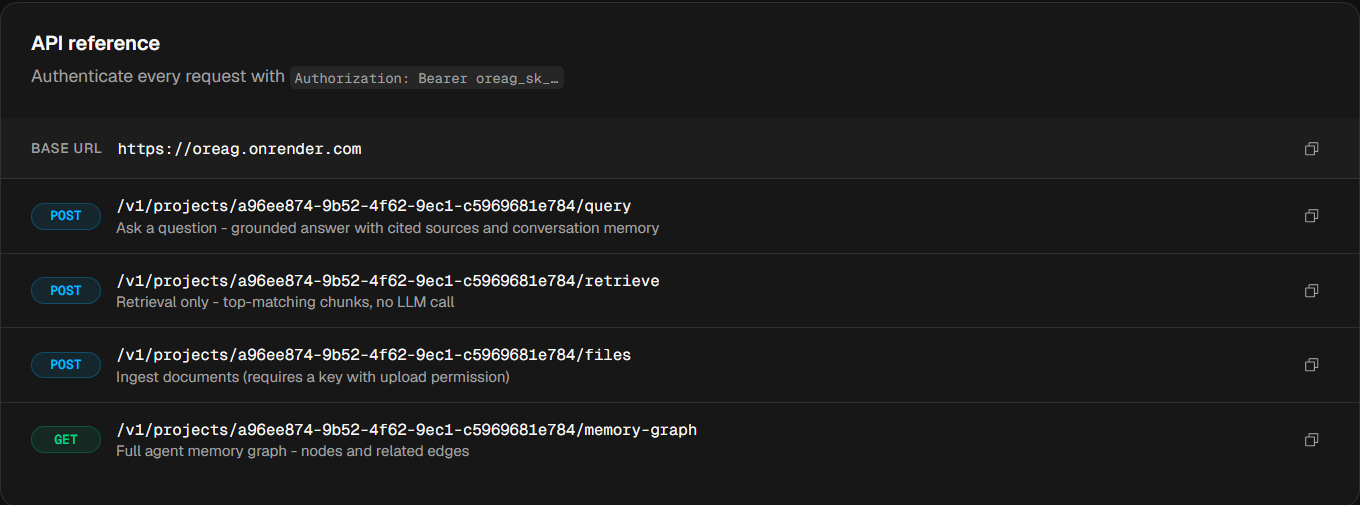
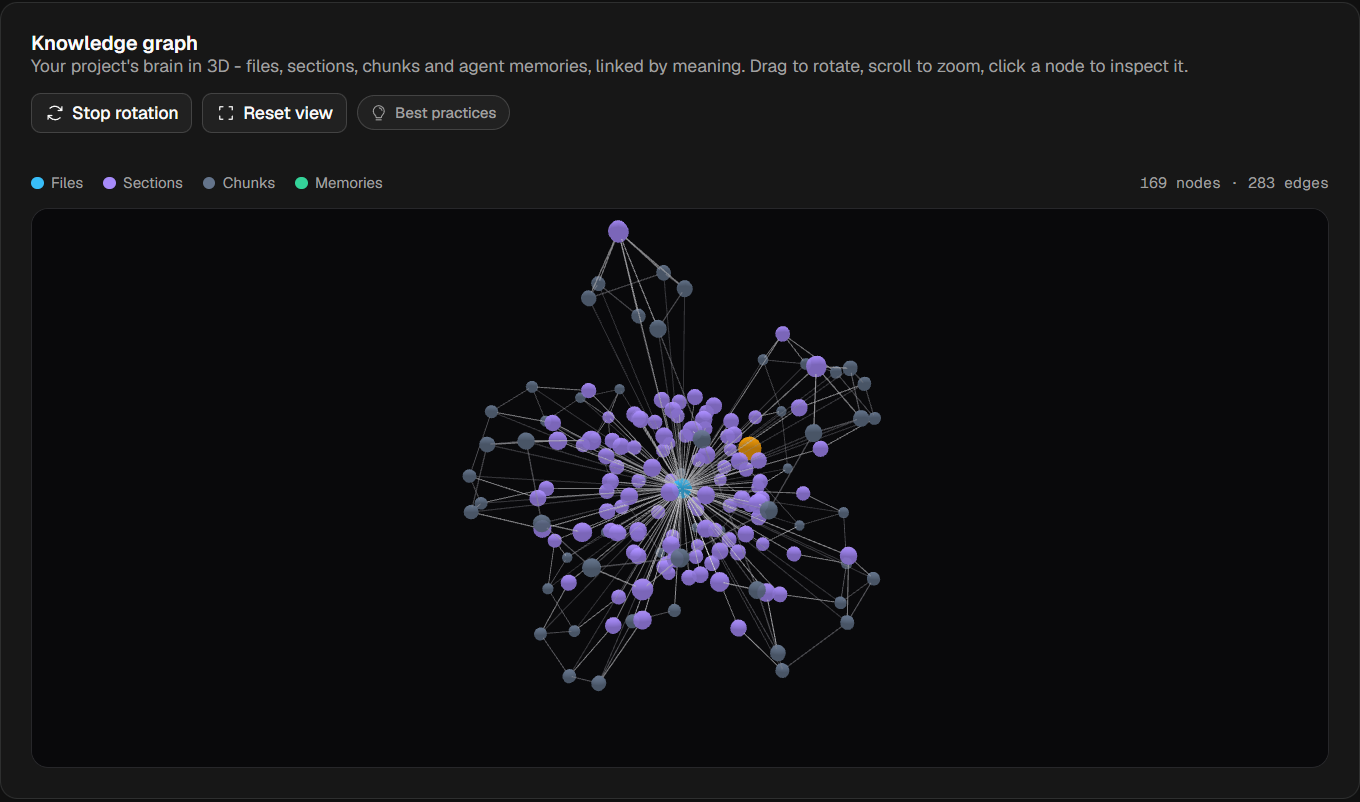
Agents reach the same data through the MCP get_memory_graph tool (no parameters), which calls GET /v1/projects/<id>/memory-graph under the hood.
How to visualize the graph
The response is a generic { nodes, edges } graph, so it drops straight into any graph-rendering library. Map each node type to a color/shape and each edge type to a line style.
// Example: shape a memory-graph response for a force-directed renderer (e.g. D3, vis-network, Cytoscape)
const graph = await fetchMemoryGraph(projectId); // GET /v1/.../memory-graph

const colorByType = {
  project: "#6b7280", // gray
  file:    "#0ea5e9", // sky
  section: "#8b5cf6", // violet
  chunk:   "#10b981", // emerald
  memory:  "#f59e0b", // amber - the memory half of the brain
};

const nodes = graph.nodes.map((n) => ({
  id: n.id,
  label: n.label,
  color: colorByType[n.type] ?? "#999",
  group: n.type,
}));

const edges = graph.edges.map((e) => ({
  from: e.source,
  to: e.target,
  // structural edges solid; semantic 'related' edges dashed + weighted by similarity
  dashes: e.type === "related",
  value: e.similarity ?? 1,
  title: e.type === "related" ? `related (${e.similarity?.toFixed(2)})` : e.type,
}));

// hand { nodes, edges } to your graph library of choice
Visualization tips:
- Color by node type so the document side (project/file/section/chunk) and the memory side stand out - amber
memorynodes against emeraldchunknodes make the brain's two halves legible at a glance. - Distinguish edge types: render structural edges (
contains,derived_from,next) as solid lines and semanticrelatededges as dashed lines, weighting their thickness bysimilarity. Therelatedlines crossing from memories into document chunks are the most insightful part of the picture. - Use a force-directed layout so semantically related nodes cluster together; topically overlapping files (joined by file↔file
relatededges carryingshared_topics) will visibly group. - Scale gracefully: on large projects the builder caps semantic edges (chunk relations skipped above 1500 chunks; memory relations above 1000 memories), so the graph stays renderable; structural edges are always present.
Oreag MCP Server
The Oreag MCP server (oreag-mcp v0.2.0) gives coding agents - Claude Code, Codex, claude.ai/Claude Desktop - per-project memory plus RAG over a project's documents, all scoped by a single Oreag project API key (oreag_sk_…). It is built on FastMCP (the mcp[cli] SDK) and can run two ways:
- Locally over stdio - the client launches it as a subprocess (one project per repo).
- Remotely over streamable-HTTP - a deployed connector that is multi-tenant: each caller supplies their own project id (in the URL) and their own project API key (as a bearer token).
Every tool delegates to an OreagClient HTTP wrapper that calls /v1/projects/<project-id><suffix> with Authorization: Bearer <api_key> and a 60-second timeout.
The 9 tools
All tools below are registered in server.py. The first six are the documented core; the last three (add_document, get_memory_graph, explore_brain) also exist and are fully usable.
| Tool | Parameters (defaults) | Purpose | Backend call |
|---|---|---|---|
save_memory | content: str, tags: list[str] | None = None, pinned: bool = False | Save a project memory (decision, fact, or note) for future sessions. | POST /v1/projects/<id>/memory body {content, tags (or []), pinned} |
search_memory | query: str, limit: int = 5 | Recall the most relevant saved memories for the current task. | POST /v1/projects/<id>/memory/search body {query, top_k: limit} |
list_recent_memory | limit: int = 10 | List recent + pinned memories to orient a new session. | GET /v1/projects/<id>/memory/recent?limit= |
delete_memory | memory_id: int | Delete a memory entry by id. | DELETE /v1/projects/<id>/memory/<memory_id> → {deleted: memory_id} |
search_docs | query: str, top_k: int = 5 | Search the project's uploaded documents for relevant passages (retrieval only, no LLM). | POST /v1/projects/<id>/retrieve body {query, top_k} |
ask_docs | question: str | Ask a question and get a grounded RAG answer from the project's documents. | POST /v1/projects/<id>/query body {question} |
add_document | filename: str, content: str | Upload a text document so it is chunked, embedded, and searchable. Requires an upload-enabled key (read-only keys get 403); any text content is accepted regardless of extension. | POST /v1/projects/<id>/files multipart uploads=(filename, content, text/plain) |
get_memory_graph | (none) | Fetch the project's interlinked "brain": a graph whose nodes are document chunks AND saved memories, joined by related (semantic-similarity) edges. | GET /v1/projects/<id>/memory-graph |
explore_brain | query: str, hops: int = 1 | Agentic retrieval over the brain. Seeds on the most-relevant chunks + memories, then expands hops (0–3) steps along related links, returning a connected subgraph. Prefer over search_docs when you need to follow how knowledge and memory connect. | POST /v1/projects/<id>/explore body {query, hops} |
Typical agent session
- Bootstrap with
list_recent_memoryto recall pinned decisions and recent notes. - While working, use
search_docs/search_memory(orexplore_brainfor multi-hop context). - Call
save_memoryto record new decisions for the next session.
Connect locally (uvx / stdio)
In stdio mode the client runs the server as a subprocess. Credentials come from environment variables: OREAG_API_KEY and OREAG_PROJECT_ID (both required), optionally OREAG_API_BASE.
Claude Code (single project per repo)
claude mcp add oreag -- uvx --from /path/to/mcp-server oreag-mcp \
  -e OREAG_API_KEY=oreag_sk_xxx -e OREAG_PROJECT_ID=<project-id>
Or declare it in .mcp.json (on Windows, set args to ["--from", ".\\mcp-server", "oreag-mcp"]):
{
  "mcpServers": {
    "oreag": {
      "command": "uvx",
      "args": ["--from", "./mcp-server", "oreag-mcp"],
      "env": {
        "OREAG_API_KEY": "oreag_sk_xxx",
        "OREAG_PROJECT_ID": "<project-id>",
        "OREAG_API_BASE": "https://oreag.onrender.com"
      }
    }
  }
}
Codex (~/.codex/config.toml) - local
Codex supports remote URLs (below). For a local stdio launch, point it at uvx the same way and supply the env vars.
Connect remotely (multi-tenant HTTP)
A deployed server in HTTP mode exposes a per-project connector at:
https://<host>/projects/<project-id>/mcp
The project id lives in the URL path; the project API key is sent as a bearer token. The server stores no project secrets in multi-tenant mode - each request is self-contained (stateless_http=True).
Claude Code (remote)
claude mcp add --transport http oreag \
  https://<host>/projects/<project-id>/mcp \
  --header "Authorization: Bearer YOUR_API_KEY"
claude.ai / Claude Desktop
Connectors → Add custom connector → paste https://<host>/projects/<project-id>/mcp and supply Authorization: Bearer YOUR_API_KEY via the client's header/OAuth field.
Codex (~/.codex/config.toml) - remote
[mcp_servers.oreag]
url = "https://<host>/projects/<project-id>/mcp"
http_headers = { Authorization = "Bearer YOUR_API_KEY" }
Each user supplies their own project id (URL) and their own project API key (bearer), keeping accounts isolated - isolation is enforced by the backend. Exact remote-server flag names shift across client versions; check each client's docs.
A missing bearer on the multi-tenant route returns 401 {"error":"missing Authorization: Bearer <project-api-key>"}.
Transports & request routing
The transport is chosen by the MCP_TRANSPORT env var (lowercased; _→-):
MCP_TRANSPORT | Behavior |
|---|---|
stdio (default / any unrecognized value) | mcp.run() - local subprocess. |
http or streamable-http | Runs uvicorn serving the streamable-HTTP app behind the HTTP gate. |
sse | SSE transport (present in code, undocumented in README). |
The HTTP gate routes by path:
| Route | Mode | Project + key source |
|---|---|---|
GET /health | Health check | Unauthenticated; returns 200 "ok". |
ANY /projects/<id>/mcp | Multi-tenant | Project id from URL; key from caller's Authorization: Bearer. Missing bearer → 401. |
ANY /mcp (any other path) | Single-project | Server's OREAG_PROJECT_ID + OREAG_API_KEY env. If MCP_AUTH_TOKEN is set and the request bearer ≠ token → 401 {"error":"unauthorized"}. |
Environment variables
| Var | Default | Role |
|---|---|---|
OREAG_API_BASE | https://oreag.onrender.com | Backend base URL. In multi-tenant mode this is the only secret needed. |
OREAG_API_KEY | (required: stdio / single-project) | Project API key oreag_sk_…. Not used in multi-tenant (comes from caller's bearer). |
OREAG_PROJECT_ID | (required: stdio / single-project) | Project UUID. Not used in multi-tenant (comes from URL path). |
MCP_TRANSPORT | stdio | stdio / http / streamable-http / sse. |
MCP_AUTH_TOKEN | "" (unset = no guard) | Optional shared-secret bearer guarding the single-project /mcp URL. Recommended for single-project HTTP deploys. |
HOST | 0.0.0.0 | Bind host. Usually injected by the platform. |
PORT | 8000 | Bind port. Injected by most platforms ($PORT). |
Requirement matrix:
| Var | Multi-tenant | Single-project |
|---|---|---|
MCP_TRANSPORT=http | required | required |
OREAG_API_BASE | required | required |
OREAG_PROJECT_ID | - (from URL) | required |
OREAG_API_KEY | - (from caller) | required |
MCP_AUTH_TOKEN | - | recommended |
PORT / HOST | injected | injected |
To set these environment variables in a shell before launching the server:
export MCP_TRANSPORT=http
export OREAG_API_BASE=https://your-backend.onrender.com
export OREAG_API_KEY=oreag_sk_xxx
export OREAG_PROJECT_ID=<project-id>
Deploy
Docker
The image is python:3.12-slim, installs uv, builds the package with hatchling, and bakes MCP_TRANSPORT=http HOST=0.0.0.0 PORT=8000, EXPOSE 8000, CMD ["oreag-mcp"]. Runtime credentials are not baked in - set them as platform env/secrets.
docker build -t oreag-mcp .
docker run -p 8000:8000 \
  -e MCP_TRANSPORT=http \
  -e OREAG_API_BASE=https://your-backend.onrender.com \
  oreag-mcp
# multi-tenant URL -> http://localhost:8000/projects/<project-id>/mcp
Render (render.yaml)
One web service, runtime: docker, plan: free, healthCheckPath: /health. MCP_TRANSPORT=http is literal; OREAG_API_BASE has sync: false (set in the dashboard, kept out of git). Single-project vars are commented-out templates with sync: false. Serves the multi-tenant connector at https://<service>.onrender.com/projects/<project-id>/mcp.
Railway / Heroku-style (Procfile)
web: env MCP_TRANSPORT=http oreag-mcp
Fly.io
fly launch
fly secrets set OREAG_API_BASE=https://your-backend.onrender.com
fly deploy
For multi-tenant deploys the server holds no project keys - set only MCP_TRANSPORT=http and OREAG_API_BASE.
Health check
GET /health → 200 body ok (text/plain), unauthenticated, handled before any routing. Used as the platform health check.
Project API Keys
Project API keys are bearer tokens that let outside callers - your app, a script, a coding agent, or an MCP client - hit a specific project's /v1 REST and MCP endpoints (query, retrieve, upload, memory, explore, memory-graph). They authenticate into Oreag and are not provider keys. Each key is created and owned per project, and its full value (oreag_sk_…) is shown only once at creation.
Under the hood, only a SHA-256 hash of the key is stored, alongside a display prefix (the first 16 characters). The format is oreag_sk_ + a URL-safe random token.
Where to manage keys
- Open the project from the sidebar (
/projects/<project-id>). - In the top tab bar, click the API tab (between Playground and Settings).
- The first card is "API keys" (subtitle: "Keys are shown once at creation - store them securely.") with a Create key button in its top-right corner.
The key table has columns: Key (<prefix>…, mono), Access (an "Uploads" checkbox), Created, Last used (datetime or "Never"), Status (green Active / grey Revoked badge), and a ⋯ actions menu. Active keys sort to the top (newest first); revoked keys sink to the bottom. With no keys, the table shows "No keys yet - create one to call your RAG API."
Create a key
- Click Create key (top-right of the card; shows a loader while creating). This POSTs to
/api/projects/<project-id>/keyswith name"default". - A dialog "API key created" appears containing the full key in a copy field, with the warning: Copy this key now - for security it will never be shown again.
- Copy it, then close the dialog. The new key appears in the table as Active.
Security: the plaintext key is shown exactly once. Oreag stores only its hash - there is no way to retrieve the full value later. If you lose it, create a new key and revoke the old one.
Use the key as a bearer token against the project's /v1 endpoints:
curl -X POST https://oreag.onrender.com/v1/projects/<project-id>/query \
  -H "Authorization: Bearer YOUR_API_KEY" \
  -H "Content-Type: application/json" \
  -d '{"question": "What is our refund policy?"}'
const res = await fetch(
"https://oreag.onrender.com/v1/projects/<project-id>/query",
{
method: "POST",
headers: {
Authorization: "Bearer YOUR_API_KEY",
"Content-Type": "application/json",
},
body: JSON.stringify({ question: "What is our refund policy?" }),
}
);
const { answer, sources } = await res.json();The Uploads permission (read vs. read+write)
Every key carries a per-key can_upload flag (default false - keys are read-only unless you grant uploads).
- In the table's Access column, each row has an "Uploads" checkbox. Unchecked = read-only (query/retrieve/memory only); checked = the key may also upload/ingest files via
POST /v1/projects/<id>/files. - Click the checkbox to flip it. The change is optimistic - the row updates instantly, then PATCHes
{can_upload}; it reverts and toasts on error. - The checkbox is disabled for revoked keys.
- A read-only key that calls the upload endpoint gets 403 (read-only). The "Upload documents" snippet in the endpoints card notes this.
# Requires a key with Uploads enabled, else 403
curl -X POST https://oreag.onrender.com/v1/projects/<project-id>/files \
  -H "Authorization: Bearer YOUR_API_KEY" \
  -F "uploads=@./handbook.pdf"
Revoke vs. Delete
Both immediately break any caller using the key. They differ in what remains visible.
Revoke (soft)
- On the key's row, open the ⋯ actions menu (labeled "<prefix> actions").
- Click Revoke (only shown for non-revoked keys).
- Confirm in the "Revoke this API key?" dialog (warns callers will get 401s and it cannot be undone). Click Revoke key.
- A "Revoking key…" loader plays, then the Status badge flips to grey Revoked and the row sinks to the bottom.
A revoked key stays in the table for audit but no longer works. Revoke sets revoked_at; the backend will reject the key with 401 "Invalid API key".
Delete (hard purge)
- Open the same ⋯ menu (Delete is available for both active and already-revoked keys).
- Click Delete (red/destructive item).
- Confirm in the "Delete this API key?" dialog (warns the row is permanently removed and any app/agent using it stops immediately). Click Delete.
- A "Permanently deleting…" loader plays, then the row disappears entirely. This DELETEs
/keys/<key-id>/purge.
| Action | Endpoint | Row after | Key works after |
|---|---|---|---|
| Revoke | DELETE /api/projects/<id>/keys/<key-id> | Stays (grey Revoked) | No |
| Delete | DELETE /api/projects/<id>/keys/<key-id>/purge | Removed entirely | No |
Account-Level vs. Project-Level Keys (Migration Guide)
Oreag has three distinct kinds of keys. They live on different screens and do completely different things - mixing them up is the most common source of confusion. This guide states what each key is, exactly where to manage it, and the precise click-path.
The three concepts at a glance
| # | Concept | What it is | Where to manage it | Looks like |
|---|---|---|---|---|
| 1 | Account-level provider keys | Your OpenAI / Gemini / Anthropic / Sarvam keys. One per provider, shared by every project on your account. | Sidebar → API keys → "Provider API keys" card | sk-…, shown as ••••••••<last4> |
| 2 | Project-level key overrides | A single project choosing to use its own provider key for its embedding model and/or its answer (LLM) model. | Open the project → Settings tab → the key field under Answer model and/or Indexing & embedding | Project key ••••<last4> |
| 3 | Project API keys | Bearer tokens external apps / agents / MCP clients use to call this project's /v1 + MCP endpoints. | Open the project → API tab → Create key | oreag_sk_…, full value shown once |
Key mental model: Concepts 1 and 2 are keys Oreag uses to call the AI providers on your behalf. Concept 3 is a key other programs use to call Oreag. They are never interchangeable.
1. Account-level provider keys (shared across all projects)
What it is: Your own API key for a model provider. Oreag encrypts it at rest (Fernet) and uses it for embedding and answering across all your projects, unless a specific project overrides it (concept 2). One key per owner + provider; only the last 4 characters are kept for display.
Supported providers:
- OpenAI - Embeddings + chat (
sk-…) - Google Gemini - Embeddings + chat
- Anthropic (Claude) - Chat only
- Sarvam AI - Chat only (Indic LLMs)
(If you would rather not paste any key, run a local Ollama model instead - it needs no key.)
Get to the screen
- In the left sidebar, click API keys (key icon - third item after Overview and New project). This navigates to
/settings/api-keys. - The page title reads "API keys", subtitle "Your own provider keys (OpenAI, Gemini, Anthropic), shared across all your projects."
- The first card is "Provider API keys" - this screen.
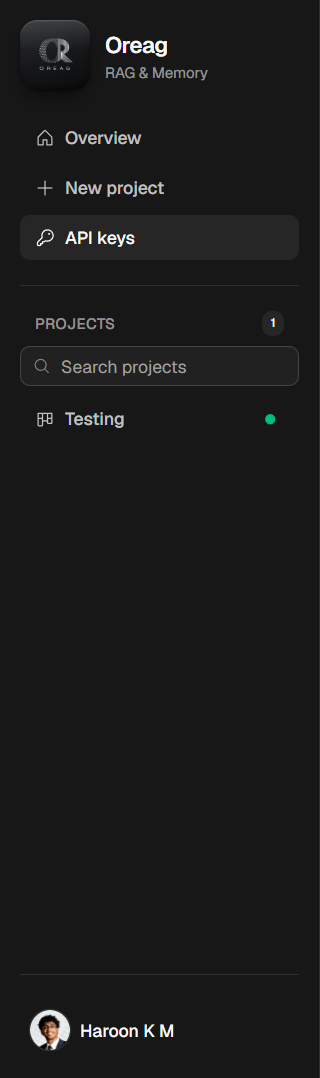

Add (or replace) a provider key
- On the provider's row, click Add (reads Replace if a key is already stored).
- A dialog "<Provider> API key" opens with a password-masked input and a note that pasted keys are encrypted and only the last 4 characters are kept.
- Paste the key. (Pressing Enter in the field also saves.)
- Click Save key. On success you get a "Key saved" toast, the dialog closes, and the row shows
••••••••<last4>. This PUTs/api/provider-keysand revalidates/api/modelsso model pickers refresh.
Screenshot: the "Add provider key" dialog with the masked API-key input and Save/Cancel buttons | Settings → API keys → Provider API keys → Add dialog
Remove a provider key
- On a row that has a key, click Remove (ghost button, only when a key exists).
- Confirm in "Remove your <Provider> key?" - it warns projects relying on this account key (with no key of their own) will stop embedding/answering.
- Click Remove key (destructive). A "Removing key…" loader plays, then the row reverts to Not set. This DELETEs
/api/provider-keys/<provider>.
Screenshot: the "Remove your <Provider> key?" confirmation dialog | Settings → API keys → Provider API keys → Remove dialog
Effect: Adding a key makes that provider's models selectable in every project's model pickers (availability is per account). Removing it breaks any project relying on it without its own override.
2. Project-level key overrides (one project, its own provider key)
What it is: A single project can use its own provider key for its embedding model and/or its answer (LLM) model, instead of the shared account key. Set inside the project's Settings - the account page only lists these overrides. There are two independent override slots per project: the Answer (LLM) key and the Embedding key.
Key resolution precedence is: per-project override → account provider key → none (with ollama / sentence_transformers needing no key).
Get to the screen (two ways)
A. From the project directly
- In the sidebar Projects list, click the project (
/projects/<project-id>). - In the tab bar (Files / Memory / Playground / API / Settings), click Settings.
B. From the account API-keys page
- Sidebar → API keys → scroll to the second card, "Project key overrides."
- On the project's row, click Manage (label swaps to a spinner while navigating). This deep-links to
/projects/<project-id>?tab=settings.
Screenshot: the "Project key overrides" card with a project row and its "Manage" button | Settings → API keys → Project key overrides card
Where the controls are (Settings tab)
Two cards carry override fields:
- "Answer model (LLM)" - a model picker plus the LLM key field.
- "Indexing & embedding" - chunk size/overlap, an embedding-model picker, plus the embedding key field.
Each key field (ProviderKeyField) has three visual states:
- Account key in use, no override: plain text "Using your account
<provider>key." + an underlined link "Use a project key instead." - Override stored: a masked chip
Project key ••••<last4>with Replace, plus either "Use account key" (when an account key exists) or "Remove" (when none does). - No key anywhere for that provider: a password input prompting you to paste a key for this project.
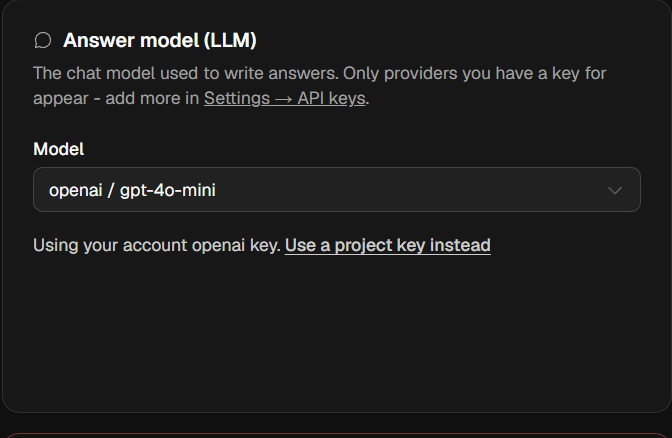
Screenshot: close-up of a stored override chip Project key ••••1234 with Replace / Use account key buttons | Project → Settings tab
Set a project override
Answer (LLM) key:
- In the "Answer model (LLM)" card, click "Use a project key instead" (or Replace if a key is stored). A password input appears.
- Paste the project's provider key.
- Click Save (Cancel sits next to it). On success: "Project key saved" toast, and the field collapses to the
Project key ••••<last4>chip.
Embedding key - behavior depends on whether you also changed the model/chunking:
- In "Indexing & embedding," reveal the input the same way and paste the key.
- If you changed only the key (same model + chunk settings), click Save - instant, no re-index.
- If you also changed the embedding model or chunk size/overlap, the button reads "Change & re-index". Clicking it opens a "Re-index all files?" confirmation (every file is re-chunked/re-embedded); confirm with Re-index to apply the new key + model together.
Screenshot: the embedding key input with the "Change & re-index" button visible | Project → Settings tab → Indexing & embedding card
Screenshot: the "Re-index all files?" confirmation dialog | Project → Settings tab → re-index dialog
Revert to the account key
With an override stored, the chip offers one of two buttons:
- "Use account key" (shown when the account has a key for that provider): click it - the override drops immediately, toast "Reverted to account key". The field returns to the "Using your account key" state.
- "Remove" (shown when there is no account key to fall back on): click it, then confirm in "Remove this project key?" (warns the project can't use that provider until a new key is added). Confirm with Delete.
Screenshot: the "Remove this project key?" confirmation dialog (no-account-key fallback case) | Project → Settings tab
Note - switching providers: If you change the model picker to a different provider without entering a new key, any override belonging to the old provider is dropped automatically and resolution falls back to the new provider's account key.
Where it shows up afterward
Back on Sidebar → API keys → "Project key overrides", the project appears as a row with Embedding key and Answer (LLM) key columns - each cell shows ••••••••<last4> where an override exists, or muted "account key" where it still uses the account key. A project with no overrides does not appear; when none of your projects have overrides the card shows "No project-level keys - every project uses your account keys above." The list updates immediately (no manual refresh).
Screenshot: a populated "Project key overrides" row showing an override last4 in one column and "account key" in the other | Settings → API keys → Project key overrides card
3. Project API keys (oreag_sk_… for external apps / MCP)
What it is: Bearer tokens that let outside callers hit this project's REST/MCP endpoints. These authenticate into Oreag (not into a provider). Created per project; full value (oreag_sk_…) shown only once. Full details - creation, the Uploads permission, revoke vs. delete - are in the Project API Keys section.
Get to the screen
- Open the project from the sidebar (
/projects/<project-id>). - Click the API tab (between Playground and Settings).
- The first card is "API keys" with a Create key button top-right; below it the "Your RAG endpoint" card lists copy-paste URLs and curl/JS/MCP snippets.
Quick decision guide
- "I want to plug in my OpenAI / Gemini / Anthropic / Sarvam key for everything" → Concept 1: Sidebar → API keys → Provider API keys → Add.
- "I want this one project to use a different provider key for its embeddings or its answer model" → Concept 2: open the project → Settings tab → the key field in the Answer model or Indexing & embedding card.
- "I want my app / agent / MCP client to call this project's API" → Concept 3: open the project → API tab → Create key.
Screenshot: side-by-side of the three entry points - the Provider API keys card, a project Settings key field, and the project API tab's Create key button | composite across /settings/api-keys and /projects/<project-id>
Reference
A compact reference for every public /v1 endpoint, every MCP tool, and the platform limits and quotas.
Authentication
All /v1 endpoints take a project API key as a bearer token. The key is scoped to exactly one project (it already identifies the project), so there is no separate ownership check beyond a 404 if the project id doesn't exist.
Authorization: Bearer oreag_sk_...
- Missing / malformed bearer, or one not starting with
oreag_sk_→ 401. - No hash match for the project (or revoked) → 401 "Invalid API key".
A public, no-auth health endpoint also exists: GET /healthz → {"status":"ok"}.
Public /v1 endpoints
All paths are prefixed /v1/projects/<project-id>.
| Method & path | Body / params | Purpose | Response |
|---|---|---|---|
GET / | - | Lightweight project info. | ProjectInfo (id, name, status, file_count) |
POST /query | {question (1–4000), top_k? (1–20), conversation_id? (≤128)} | Grounded RAG answer; blends in relevant memories; logs to query_logs. | QueryResponse (answer, sources, model, latency_ms, depth, sub_queries, needs_clarification, clarification_questions, conversation_id) |
POST /retrieve | {query, top_k? (default 5)} | Retrieval only (no LLM): cosine top-k over chunks. 503 if embedding provider unavailable. | list[SourceChunk] |
POST /explore | {query (1–4000), hops (0–3, default 1)} | Agentic-RAG: seeds on nearest chunks + memories, walks related links. 503 if no embedding key. | BrainExploreResponse (query, seeds[], nodes[], edges[]) |
POST /files | multipart uploads | Upload + ingest. Requires can_upload key (else 403). Uses project-default chunking/embedding. | 201 list[FileOut] |
POST /memory | {content (1–8000), tags[], pinned, source (default "mcp")} | Save a memory (best-effort embed; warning if stored without embedding). | 201 MemoryOut |
POST /memory/search | {query, top_k? (default 5)} | Cosine search over memories with embeddings. 503 if no embedding key. | list[MemorySearchResult] (MemoryOut + similarity) |
GET /memory/recent | ?limit= (1–50, default 10) | Recent memories, pinned first. | list[MemoryOut] |
DELETE /memory/<memory_id> | - | Delete a memory owned by the project. | 204 |
GET /memory-graph | - | Full static brain graph: project → files → sections → chunks + memories, with related edges. | MemoryGraphResponse (project, nodes, edges) |
Upload-endpoint guards (POST /v1/.../files)
| Guard | Limit | Failure |
|---|---|---|
| Key permission | can_upload must be true | 403 read-only |
| Non-empty payload | - | 422 |
| Files per request | ≤ 20 | 413 |
| Total files per project | ≤ 1000 | 413 |
| Upload rate | ≤ 60 / 60s (per project) | 429 |
| Per-file type | must contain extractable text | 400 |
| Per-file size | ≤ 50 MB | 413 |
Request rate limits
Every public /v1 request is counted against two budgets at once: the API key's own budget AND a project-wide budget shared by ALL of that project's keys. Windows are fixed 60-second slots. Exceeding either budget returns 429 with a Retry-After header (seconds until the window resets) - wait that long, then retry.
| Endpoints | Per API key | Per project (all keys combined) |
|---|---|---|
Standard - /query, /query/stream, /retrieve, /memory, /memory/search, /memory/recent, project info | 120 / min | 300 / min |
Heavy - /explore, /memory-graph | 10 / min | 20 / min |
Uploads - POST /files | - | 60 files / min (separate counter) |
Related guards introduced with the limiter:
/explorehopsis capped at 1 for API-key callers (each hop multiplies vector scans).- Memories cap at 2000 per project - creating past the cap returns
413. - A
429withRetry-After: 10can also mean the upstream AI provider rate-limited the project's key. Same backoff behavior, different fix: raise your provider quota (or add a project-level key) instead of sending fewer requests.
Example: query
curl -X POST https://oreag.onrender.com/v1/projects/<project-id>/query \
  -H "Authorization: Bearer YOUR_API_KEY" \
  -H "Content-Type: application/json" \
  -d '{"question": "What is our SLA?", "top_k": 8}'
{
"answer": "Our standard SLA is 99.9% uptime [1].",
"sources": [
{ "filename": "sla.pdf", "page_number": 2, "chunk_index": 5, "content": "...", "similarity": 0.82 }
],
"model": "openai/gpt-4o-mini",
"latency_ms": 734
}QueryResponse also carries depth ("short" | "long"), sub_queries (the focused sub-queries a long question was split into), conversation_id (echoed when you pass one, else null), and the clarification pair needs_clarification / clarification_questions. When needs_clarification is true, the answer field holds the human-facing clarification prompt and clarification_questions lists the follow-ups. Pass an optional conversation_id (≤ 128 chars) to continue a thread; see Querying for the full agentic loop and conversation memory.
MCP tools
| Tool | Params (defaults) | Backend call |
|---|---|---|
save_memory | content, tags=None, pinned=False | POST /memory |
search_memory | query, limit=5 | POST /memory/search (top_k=limit) |
list_recent_memory | limit=10 | GET /memory/recent?limit= |
delete_memory | memory_id | DELETE /memory/<memory_id> |
search_docs | query, top_k=5 | POST /retrieve |
ask_docs | question | POST /query |
add_document | filename, content | POST /files (multipart; needs upload-enabled key, else 403) |
get_memory_graph | (none) | GET /memory-graph |
explore_brain | query, hops=1 | POST /explore |
Limits & quotas
Size & rate limits
| Limit | Value | Applies to |
|---|---|---|
| Max upload size | 50 MB / file | Owner and /v1 uploads |
Files per /v1 upload request | 20 | /v1 only |
| Files per project | 1000 | /v1 only |
| Upload rate | 60 / minute (sliding 60s, per project) | /v1 only |
Owner/dashboard uploads are exempt from the per-request, per-project, and rate quotas - those apply only to
/v1.
Schema-level validation
| Field | Constraint |
|---|---|
chunk_size | 100–8000 |
chunk_overlap | ≥ 0 and < chunk_size |
top_k | 1–20 |
question / query | ≤ 4000 chars |
memory content | ≤ 8000 chars |
hops (explore) | 0–3 |
| provider key length | 8–500 chars |
project name | ≤ 200 chars |
memory/recent limit | 1–50 (default 10) |
memory/search top_k | default 5 |
retrieve top_k | default 5 |
RAG behavior tuning (server defaults)
| Setting | Value | Effect |
|---|---|---|
rag_memory_blend_k | 4 | Memories searched and blended into RAG context per query |
rag_memory_min_similarity | 0.35 | Minimum similarity for a memory to be added as a pseudo-source |
explore_seeds_per_type | 6 | Seed chunks and seed memories each |
explore_fanout | 4 | Neighbours expanded per relation during a hop |
explore_max_nodes | 50 | Node budget for an explore subgraph |
Supported upload file types
.pdf .docx .pptx .xlsx .xls .csv .md .txt .html .htm .json .xml .rtf .epub .odt .ods .odp · images .bmp .gif .jpg .jpeg .png .tif .tiff · audio .mp3 .wav .m4a · .eml .zip
Those convert via MarkItDown; any other extension ingests as plain text. Images (.jpg .jpeg .png) are AI-captioned via the project's answer model (OpenAI or Gemini); audio is transcribed with the uploader's own STT-capable keys (OpenAI, Gemini, Groq, Mistral, Sarvam), falling back to a free speech endpoint for short clips. Opaque binary files are rejected with 400; documents that convert to no text fail ingestion.